
Description
Looking for a WordPress image optimizer without an API key? Squeeze is a local WebP converter that lets you compress images in WordPress, convert uploads to WebP, and bulk compress your media library without ShortPixel-, Imagify-, or Smush-style monthly caps. Processing runs in your admin browser—unlimited squeezes, full privacy, and no uploads to third-party compression servers.
If you need a webp converter wordpress plugin, a shortpixel alternative without recurring API fees, or an image optimizer without api keys, Squeeze keeps optimization on your server and in your browser instead of a SaaS queue.
Unlike cloud-based plugins, Squeeze:
♾️ No compression limits — squeeze your entire Media Library, not just the first 100–500 images per month.
☁️ No third-party servers — images never leave your site; processing happens locally in the browser (ideal for GDPR-sensitive and membership sites).
⚡ Direct WebP conversion — convert JPG/PNG to WebP and replace the original file on disk (no duplicate copies cluttering storage).
🖼️ Optimize on upload — compress in Gutenberg, GenerateBlocks, and the Voxel theme before files hit the server (Elementor on-upload squeeze is available in Premium).
The result: smaller files, faster page loads, and lower hosting storage—without SaaS fees or API keys.
Squeeze official website | Plugin documentation
🌟 New in 1.7.x
- Direct WebP conversion: Convert JPG/PNG to WebP and replace originals—save storage without duplicate files.
- Pre-upload compression: Shrink images in the browser before upload (Gutenberg, GenerateBlocks, Voxel create-post and gallery fields).
- Three WebP delivery modes: Direct WebP, separate squeeze-webp folder with URL rewrite, or server-side delivery via .htaccess.
- Voxel theme support: Pre-upload squeeze on multipart AJAX uploads in create-post and file/gallery fields.
✨ Key Features
- Faster pages: Smaller images improve load time, Core Web Vitals, and mobile bandwidth use.
- WebP conversion & serving: Convert to WebP and serve efficiently—choose Direct WebP, HTML URL rewrite, or .htaccess delivery for supported browsers.
- Client-side squeezing: Compress in the browser; nothing is uploaded to external optimization servers.
- Upload optimization: Compress on the fly during upload so optimized files land in your Media Library.
- Gutenberg & GenerateBlocks: Squeeze images as you add them in the block editor.
- Voxel theme: Compress before upload on Voxel create-post and file/gallery fields.
- Bulk compression: Compress hundreds of Media Library images in one run (pause/resume supported).
- Custom directory squeeze: Pick any folder under your site root and optimize all images inside it.
- Exclusions: Skip images by URL or filename pattern (one per line).
- Fine-tuned quality: Per-format tabs for JPEG, PNG, WebP, and AVIF (MozJPEG, OxiPNG-style PNG, and more).
- Backup option: Keep a
.bakcopy to restore the original after squeezing. - Formats: JPEG, PNG, WebP, and AVIF.
⚜️ Premium Features
- Image comparison in the Media Library (before/after sizes).
- Resize originals to max width/height before squeeze.
- Bulk squeeze from a page — all images used on one post or page.
- Elementor integration — squeeze on upload while editing in Elementor.
- CDN URL — map CDN image URLs to local files for all WebP delivery modes.
- Priority support & updates
How does Squeeze work?
Open the Media Library, run Bulk Squeeze, or upload a new image — Squeeze runs Google Chrome team–backed codecs (the same family as Squoosh.app) inside your browser via Web Workers. No account, no API key, no off-site upload queue.
Screenshots

Compressed image with Squeeze Plugin 
Squeeze’s Bulk Compression Page 
Squeeze’s Restore and Recompress Options 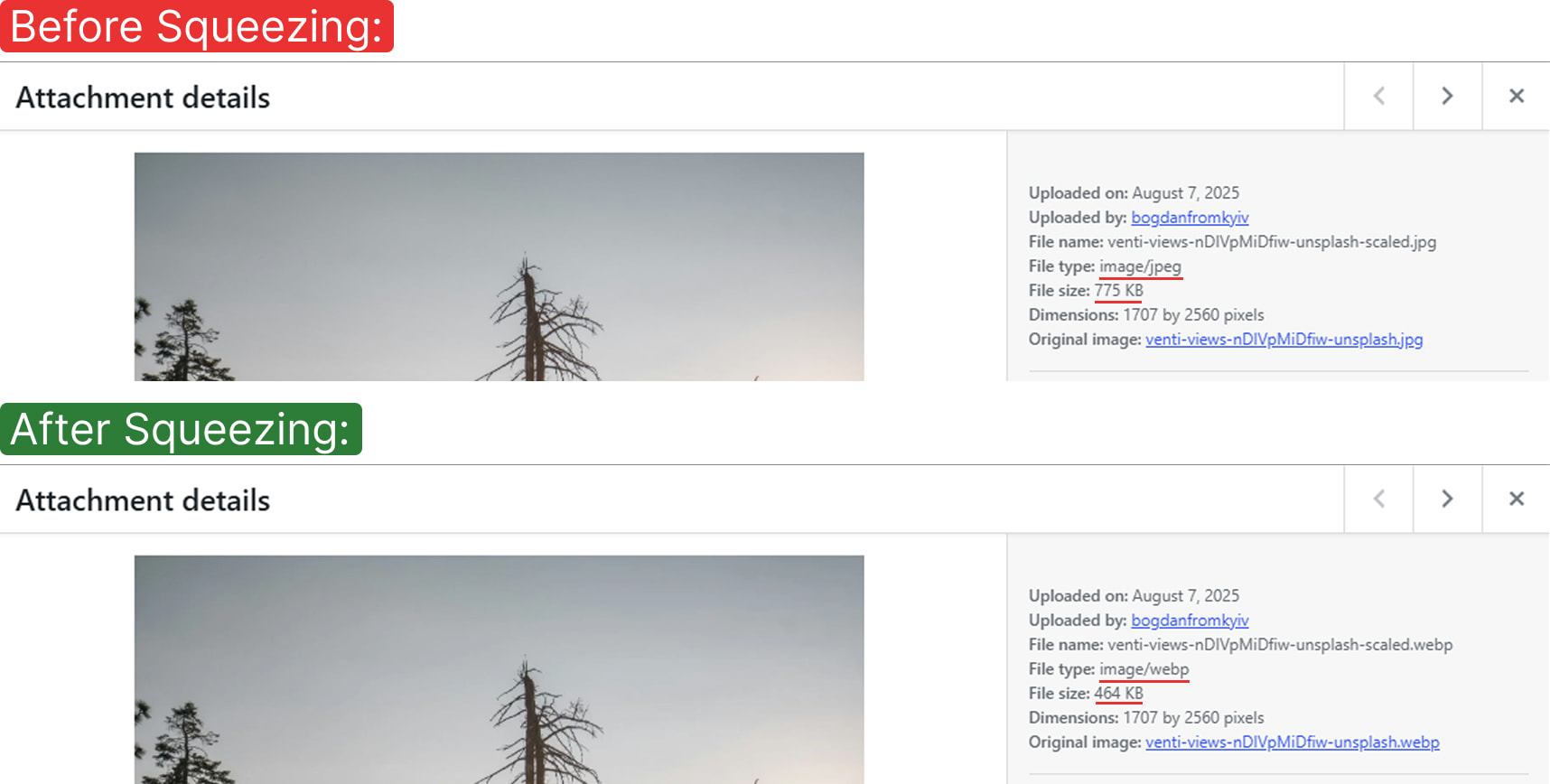
Direct conversion of an image into WEBP format. The original image is being replaced by the compressed image in WEBP format. 
A method of replacing images URLs with the corresponding WEBP versions. 
Squeeze’s Basic Settings 
Squeeze’s JPEG compression settings 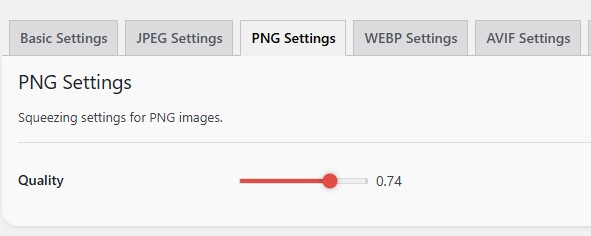
Squeeze’s PNG compression settings 
Squeeze’s WEBP compression settings 
Squeeze’s AVIF compression settings 
Squeeze’s Bulk actions in the List view of the Media Library 
Squeeze’s Filter in the Grid view of the Media Library 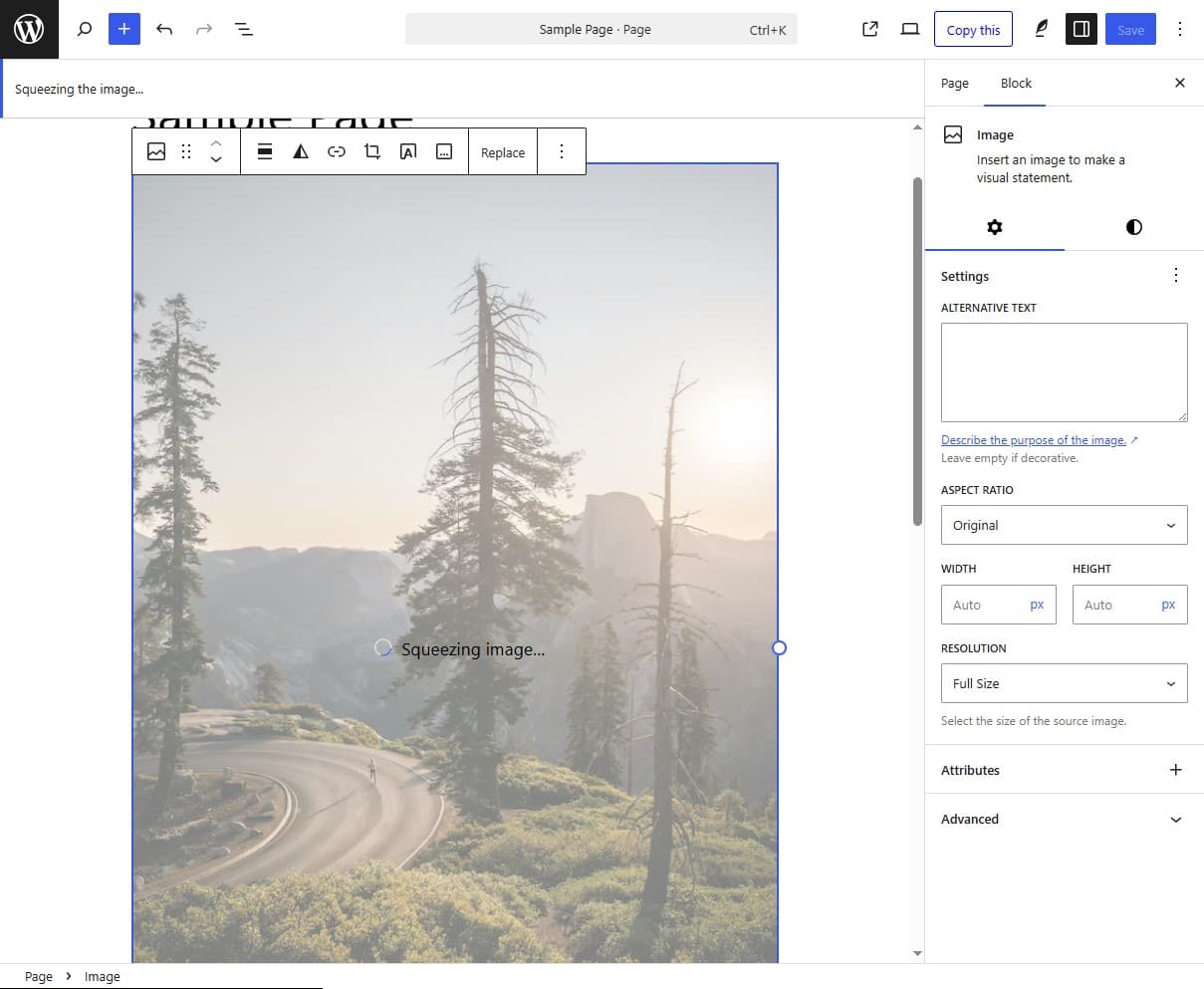
Squeeze images directly on upload in Gutenberg or GenerateBlocks builder. 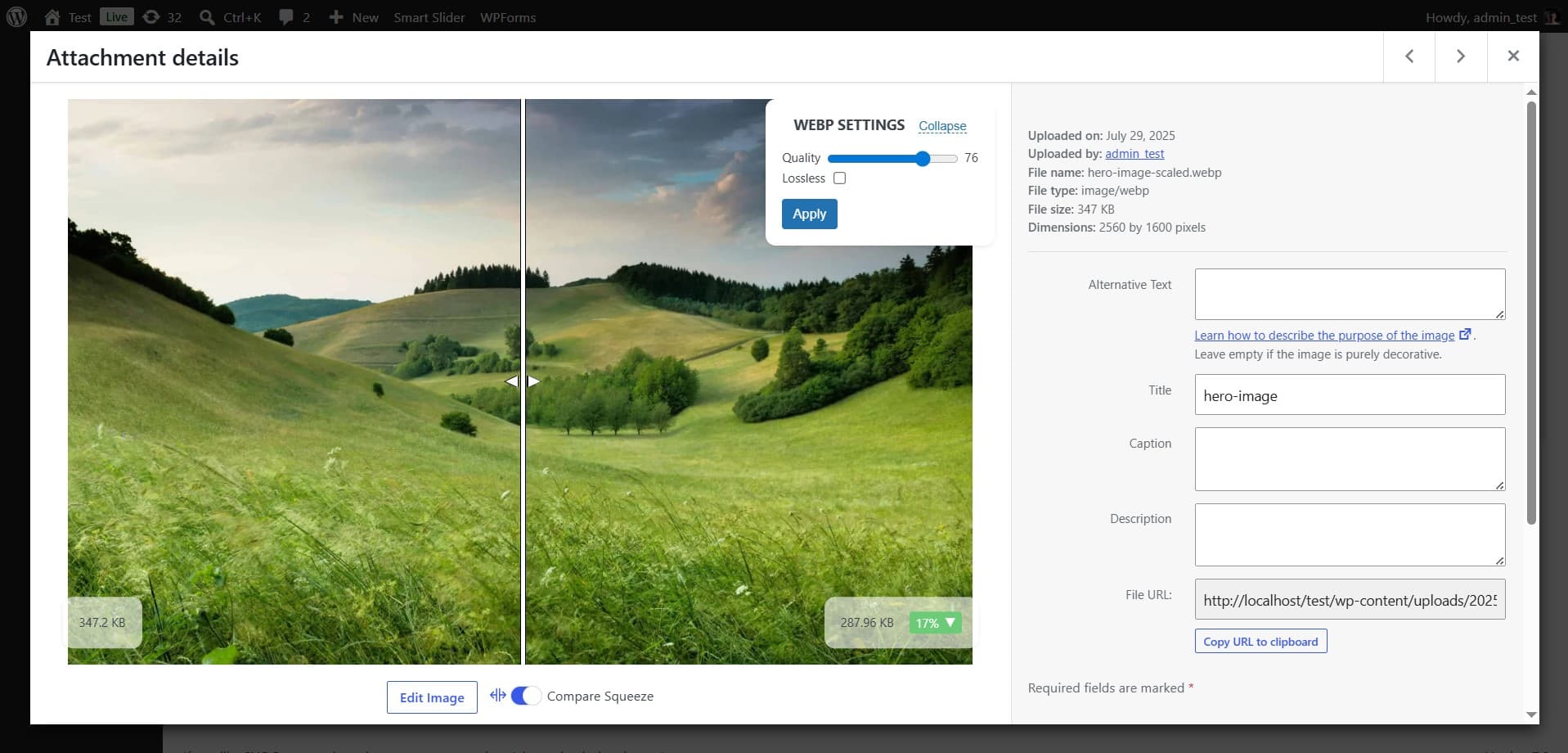
Preview image with live Squeezing options (Premium feature) 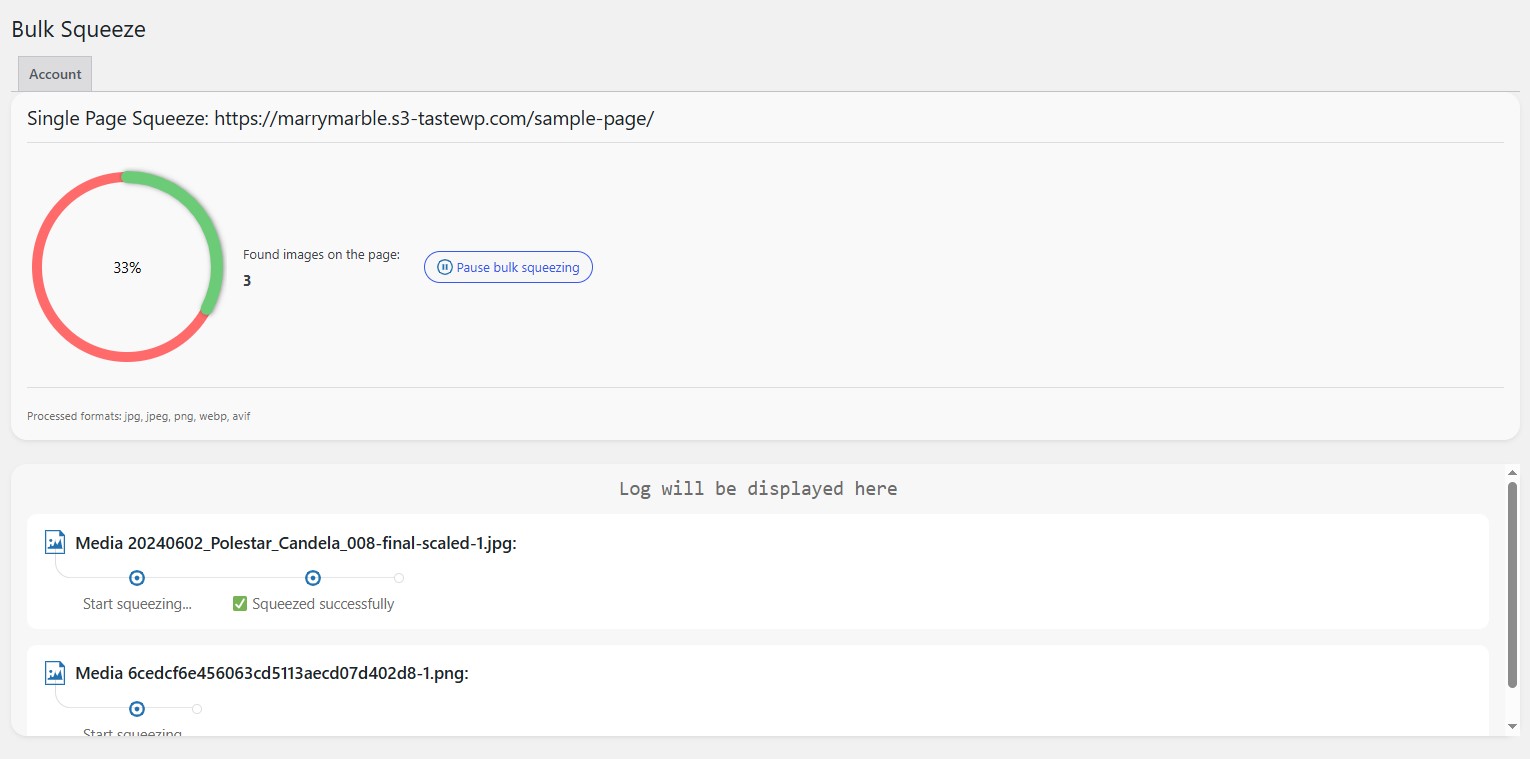
Bulk Squeeze from a page (Premium feature)
Installation
- Install Squeeze from the WordPress Plugin Directory (Plugins Add New search “Squeeze image” or “webp converter wordpress”).
- Activate the plugin.
- Go to Settings Squeeze and enable Squeeze on upload and Direct WebP conversion if you want automatic WebP for new uploads.
- First squeeze: open Media Library, click any image, and use Squeeze on the attachment screen—or run Bulk Squeeze under Settings Squeeze for existing library images.
- Optional: test Direct WebP on a staging copy before enabling on a live site with hard-coded image URLs.
FAQ
-
How does the plugin work?
-
Squeeze compresses images in your browser using Web Workers and open-source codecs (MozJPEG for JPEG, Browser Image Compression for PNG, WebP and AVIF encoders). You can squeeze from the Media Library, bulk tools, custom folders, or during upload in supported editors.
-
Do I need an API key or cloud account?
-
No. Squeeze does not require ShortPixel, Imagify, or any third-party API. There are no per-month image caps imposed by the plugin.
-
What makes Squeeze different from ShortPixel, Imagify, or Smush?
-
- Unlimited squeezes (no SaaS quota).
- Privacy: files stay on your server; compression runs in the admin browser.
- Direct WebP can replace originals instead of keeping parallel JPG + WebP copies.
- No recurring API cost for compression itself.
- Niche integrations: Voxel pre-upload, Gutenberg/GenerateBlocks on upload; Elementor in Premium.
-
How fast is compression?
-
Speed depends on your computer and image size. Large PNGs can take longer; increase Squeeze timeout under Settings Squeeze Basic Settings if needed.
-
Are images sent to an external server?
-
No. Processing is client-side in wp-admin (and in supported front-end upload flows). Your image bytes are not sent to Squeeze’s servers for compression.
-
Can Squeeze convert images to WebP?
-
Yes. Enable Direct WebP conversion under Basic Settings to convert new uploads to WebP and replace the original file. You can also use legacy modes that keep JPG/PNG and store WebP in
wp-content/squeeze-webp/with URL rewrite or .htaccess delivery. -
Is it safe to replace images with WebP?
-
Yes for new uploads when you understand URL changes. For existing sites, test on a staging copy first. Replace Image URLs rewrites
srcin page HTML at render time (database URLs unchanged). If you deactivate the plugin while Direct WebP is on, some hard-coded.jpglinks may break — reselect images from the Media Library or restore from.bakbackups. -
Will images break if I deactivate the plugin?
-
If Direct WebP replaced originals, some content may still reference old
.jpg/.pngURLs. Reselect images in the editor or restore backups. HTML-only URL rewrite modes stop rewriting when the plugin is off, but original files remain on disk. -
How are WebP images served?
-
Choose one of three modes in WebP delivery:
- Direct WebP (recommended) — file on disk becomes
.webp; lowest storage. - Rewrite
<img>src — keeps originals; serves WebP URLs in HTML output. - Server delivery — keeps URLs;
.htaccessserves WebP bytes to supporting browsers.
Premium CDN URL helps map CDN paths to local files for all modes.
- Direct WebP (recommended) — file on disk becomes
-
Why do I see “Image conversion blocked by browser privacy setting”?
-
Your browser blocked canvas access (common with Firefox
privacy.resistFingerprinting). Setprivacy.resistFingerprintingtofalseinabout:config, use Chrome/Edge, or a profile without strict fingerprinting resistance. -
Does Squeeze work with the Voxel theme?
-
Yes (free). Pre-upload compression runs on Voxel create-post and file/gallery AJAX uploads so images are smaller before they reach the server.
-
Does Squeeze work with Elementor?
-
On-upload squeeze in Elementor is a Premium feature. Free version supports Gutenberg, GenerateBlocks, and Voxel.
-
Does Squeeze work with GenerateBlocks?
-
Yes. GenerateBlocks media blocks support the same on-upload squeeze as the core Image block when Squeeze on upload is enabled under Basic Settings.
-
What if the squeezed file is larger than the original?
-
Squeeze can skip replacing an upload when the compressed file would be larger (common with already-optimized PNGs). Lower JPEG/WebP quality in the format tabs, exclude the asset under Excluded images, or squeeze a smaller registered thumbnail size.
-
How do .bak backup files work?
-
Enable Create backup in Basic Settings before squeezing. Squeeze saves a
.bakcopy next to the file so you can Restore Original Image from the Media Library list or attachment screen. Remove unneeded backups with Delete Backup Image. -
Does WebP server delivery need Apache mod_rewrite?
-
The separate folder + server-side delivery mode writes
.htaccessrules and needs mod_rewrite on Apache. If mod_rewrite is unavailable, use Direct WebP or Rewrite<img>src instead. On Nginx or other stacks without Apache rules, prefer Direct WebP or HTML rewrite unless you add equivalent server rewrites yourself. -
Does Squeeze work on WordPress multisite?
-
Yes on standard multisite installs—each site has its own Squeeze settings and Media Library. Test Direct WebP on a staging subsite before bulk conversion across a large network.
-
Which codecs does Squeeze use?
-
MozJPEG (JPEG), Browser Image Compression (PNG), plus WebP and AVIF encoders—the same technology family as Squoosh.app by the Chrome team.
-
Why use image compression on WordPress?
-
Smaller images improve LCP and overall speed, reduce bandwidth bills, and free disk space—especially when combined with WebP.
-
Which formats are supported?
-
JPEG, PNG, WebP, and AVIF.
-
Can I compress many images at once?
-
Yes. Use Bulk Squeeze (Media Library attachments) or Directory Squeeze for any folder under your site root. Directory mode does not create automatic backups—back up first.
-
Can I exclude images?
-
Yes. List URL or filename patterns (one per line) under Excluded images in Basic Settings.
-
Can I customize compression quality?
-
Yes. Settings Squeeze has tabs for JPEG, PNG, WebP, and AVIF quality and advanced options.
-
Bulk squeeze seems stuck on a large PNG — what should I do?
-
Wait for completion or a timeout message. Increase Squeeze timeout (default 60 seconds). Very large PNGs may exceed browser memory on low-end devices.
-
How do I fix “Request timed out”?
-
Go to Settings Squeeze Basic Settings and raise Squeeze timeout. If it still fails, resize the source image or squeeze a smaller derivative.
-
Is Squeeze a good ShortPixel or Imagify alternative?
-
Yes, if you want unlimited local compression without API keys or per-month image quotas. Cloud optimizers upload files to their servers; Squeeze processes images in your browser and stores results on your WordPress site. You trade SaaS convenience for privacy, predictable cost, and no upload caps.
-
How does Squeeze compare to EWWW Image Optimizer?
-
Both can optimize on your server. Squeeze focuses on client-side codecs in the browser (Squoosh-family encoders), Direct WebP replacement on disk, and pre-upload squeeze in Gutenberg, GenerateBlocks, and Voxel. EWWW often relies on server-side tools or paid cloud tiers. Choose Squeeze when you want no external compression queue and strong WebP storage savings.
-
How do I compress my first image after installing?
-
Activate the plugin, open Media Library any image Squeeze on the attachment screen. For many images at once, go to Settings Squeeze Bulk Squeeze and run Bulk Media Library Squeeze. Enable Squeeze on upload under Basic Settings for automatic optimization on new uploads.
-
Does Squeeze work with FileBird?
-
Yes. Squeeze is compatible with the FileBird media folder plugin; bulk and attachment squeeze work with FileBird-organized libraries.
-
Can I use Squeeze on a staging site first?
-
Recommended—especially before Direct WebP conversion on an existing site. Test themes, page builders, and any hard-coded
.jpg/.pngURLs on staging, then enable on production. -
Does bulk squeeze include WooCommerce images?
-
Yes, when images are normal Media Library attachments (product galleries, thumbnails registered in WordPress). Select the thumbnail sizes you want under Squeeze thumbnails in Basic Settings, including WooCommerce sizes when listed.
-
Is browser-side compression suitable for GDPR or membership sites?
-
Yes. Image bytes are not sent to Squeeze’s servers for compression—processing runs locally in the administrator’s browser (and supported front-end upload flows). This helps sites that must avoid third-party image processing services.
-
Where is the full documentation?
Reviews


Contributors & Developers
“Squeeze – Image Optimization & Compression, WEBP Conversion” is open source software. The following people have contributed to this plugin.
Contributors
Translate “Squeeze – Image Optimization & Compression, WEBP Conversion” into your language.
Interested in development?
Browse the code, check out the SVN repository, or subscribe to the development log by RSS.
Changelog
1.7.9
- Redesigned WebP delivery settings with three clear modes: Direct WebP, separate squeeze-webp folder with URL rewrite, and separate folder with server-side delivery (.htaccess)
- Voxel theme: pre-upload compression for create-post and file/gallery field uploads
- CDN URL setting (Premium): works with all WebP delivery modes, including Direct WebP
- Improved URL-to-filesystem resolution when checking WebP files (CDN-aware, Premium CDN URL)
- Bulk directory browser returns site-relative paths only (no absolute server paths in API responses)
- Fixed Media Library bulk squeeze completion popup (missing JavaScript helper import)
- PHPUnit and bulk browse path handling improvements
1.7.8
- Improved security for backend
1.7.7
- Fixed undefined function error for squeeze_premium
1.7.6
- Cached heavy PHP and SQL requests
1.7.5
- Updated notifications texts and icons
- Upgraded the Freemius version
1.7.4
- Replacing existing JPG/PNG images to WebP related from Direct WebP conversion
- Minor code refactor and bug fixing
1.7.3
- Added compatibility with Filebird plugin
- Refactored some JS functions
1.7.2
- Added compatibility with Elementor (Premium version only)
1.7.1
- Fixed Editor’s interception request bug
- Add notification if Canvas extraction is blocked
1.7.0
- Added direct WEBP conversion option
- Compress newly uploaded images immediately, before they being uploaded to the server
- Skip uploading the compressed image, if it becomes larger than original after compression
- Fixed account tab on the Settings page
- Added explanation screenshots for some options on the Settings page
1.6.7
- Added auto-squeezing for the images uploaded via Image block
- Adjusted UI for the bulk squeezing
- Added documentation tab on the Settings page
1.6.6
- Changed hook for enqueuing assets
1.6.5
- Added bulk Squeeze in the Grid mode
- Fixed filesize after Squeezing (on page reload)
- Fixed load_text_domain bug
1.6.4
- Changed PNG compression script
1.6.3
- Removed Freemius from the free version
1.6.2
- Pro version available
1.6.1
- Fixed vulnerabilities and bugs
1.6
- Refactored PHP and JS code
1.5.2
- Fixed WEBP conversion
- Added option to select image formats
1.5.1
- Fixed webworker bug
1.5
- Added WEBP serving
- Minor UI updates
1.4.9
- Added UI popup for bulk directory squeeze
- Added filters to the Media Library to select non-squeezed images
1.4.8
- Added webworker
- Fixed pause/resume on bulk Squeeze
- Minor UI/UX updates
1.4.7
- Updated plugin’s UI and description
1.4.6
- Bulk compress option for the list view of the Media Library
- Pause/Resume option for the bulk compress process
- Fixed bugs with the list mode
- Fixed bug when bulk process stuck if image processing failed
- Added timeout for image compression process
- Added scaled image size for compression
- Refactored JS code
1.4.5
- Add bulk restore option to the list view of Media Library
- Compress selected thumbnails separately
1.4.4
- Delete .bak file on media delete
1.4.3
- Fixed minor JS bug
1.4.2
- Fixed security issue: check permissions for file upload
1.4.1
- Fixed security issue: Arbitrary File Upload
1.4
- Add AVIF support
1.3
- Add WEBP support
- Update settings page layout with tabs
- Add ability to re-compress images
- Add ability to compress images from custom directory
1.2
- Fix minor bug in Media library
1.1
- Fix PNG compressor
1.0
- First release.