Title: FileDeck – Document Library, Download Manager & Client Portal
Author: filedeck
Published: July 22, 2026
Last modified: November 12, 2026
---
Search plugins

# FileDeck – Document Library, Download Manager & Client Portal
By [filedeck](https://profiles.wordpress.org/josephlines/)
[Download](https://downloads.wordpress.org/plugin/filedeck.2.115.3.zip)
* [Details](https://frp.wordpress.org/plugins/filedeck/#description)
* [Reviews](https://frp.wordpress.org/plugins/filedeck/#reviews)
* [Installation](https://frp.wordpress.org/plugins/filedeck/#installation)
* [Development](https://frp.wordpress.org/plugins/filedeck/#developers)
[Support](https://wordpress.org/support/plugin/filedeck/)
## Description
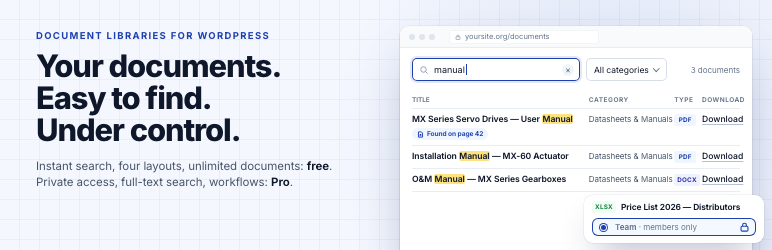
FileDeck is a WordPress plugin for documents, downloads and client portals. It turns
file collections into a fast, searchable document library, PDF library, resource
library or plain file list with table, grid, gallery and folder layouts; tracks
every download and protects private files; and gives each client a private document
portal. For teams that need more than a file library, Pro adds document management
proper — version history, review and approval cycles, scheduled expiry and a full
audit trail.
**See it in action:** watch the one-minute tour below, try the [live demo](https://www.getfiledeck.com/demo/)(
the real plugin, no signup) or read the [documentation](https://www.getfiledeck.com/docs/).
**A free version that’s actually usable.** Every layout, every filter, and the Gutenberg
block are free, and you can list as many documents as you like. Nothing essential
is locked away just to force an upgrade.
#### What people use FileDeck for
* **Safety data sheets and product documentation** – SDS, manuals and spec sheets
searchable by product code, with a QR code per sheet. [SDS library](https://www.getfiledeck.com/sds-library/)
* **Meeting minutes, agendas and newsletters** – filed by year, with a free year
filter. [Minutes archive](https://www.getfiledeck.com/meeting-minutes-archive/)
* **School policies and forms** – for parents, with the library’s interface in
nine languages. [For schools](https://www.getfiledeck.com/for-schools/)
* **Staff policies and procedures** – an intranet policy library; Pro limits it
to staff and tracks review dates.
* **Client portals and secure file sharing** – Pro gives each client a private
document area. [Client portal guide](https://www.getfiledeck.com/docs/create-a-client-portal-in-wordpress/)
* **Annual reports and public documents** – reports, public notices and tender
documents.
#### What you won’t find elsewhere
* **Full-text document search** – Pro searches _inside_ your PDFs, Office and text
files — text is extracted on your own server, and optional OCR for scans stays
off until you switch it on
* **One-click migration** – switching plugins? FileDeck imports the whole library,
files and all (see below)
* **Large file uploads** – drawings, scans and video upload in resumable chunks,
past your host’s upload limit
* **Library event webhooks** – a signed JSON POST when a document is published,
updated, retired or deleted, for Zapier, Make or your own system, or a readable
message in Slack or Teams
* **Client areas** – give each client a private document portal with uploads and
email notifications
#### Free features
* **Four layouts** – searchable table, responsive card grid, a thumbnail-forward
document gallery, or collapsible folders that follow your category hierarchy,
sub-folders and all, in the order you choose
* **Instant search** – filters as you type; every word counts, “exact phrase” and
OR searches work
* **Date-added filter** – narrow a library to the past week, month or year (optional)
* **Year filter** – a dropdown of the years the library’s documents span, for minutes,
newsletters and reports filed by year; `year="2025"` pins a library to one year
* **Reference number** – a part number, document code or form number on every document:
searchable, and a sortable column
* **Group by category or year** – one library as a titled section per category,
or a section per year, with one search box across all of them
* **AI-agent ready** – read-only abilities for WordPress 6.9’s Abilities API, so
agents can search the library through MCP
* **Sortable columns** – title, date, size, type, downloads, and more
* **Unlimited documents** – search scales as your library grows
* **Download tracking** – per-document download counts
* **Force download or open in browser** – choose per document whether the button
saves the file or opens it in the browser
* **Library builder** – design a library with a live preview on your own site,
in your theme, then create the page in one click or copy its shortcode
* **Gutenberg block + shortcode + six page builders** – a native block, the `[filedeck]`
shortcode, and elements for Elementor (Library, Document Embed and Search), Bricks,
Divi, WPBakery (Visual Composer), Avada (Fusion Builder) and Beaver Builder
* **Translation-ready, nine languages bundled** – the library’s front end ships
translated into Hungarian, Slovak, Spanish, German, French, Italian, Polish,
Brazilian Portuguese and Simplified Chinese, with a `.pot` template for translating
it into any other language; documents and categories translate with WPML, Polylang
and compatible plugins
* **⌘K command palette** – site-wide quick-search overlay that jumps straight to
any document
* **Sidebar widgets & Popular Documents block** – Recent Documents, Top Downloads
and Related Documents widgets, plus a Popular Documents block: most downloaded,
newest, recently updated or related
* **QR codes** – generate a printable QR for any document (offline, nothing leaves
your site) for noticeboards and posters
* **Multi-select filters with counts** – categories, tags, and optional file type
and author filters: pick several values at once, see how many documents sit behind
each before you click, and drop any one from the active-filter bar; shown above
the library or under the column headings
* **Multi-column sorting** – click a heading to sort, shift-click a second to break
the ties (file type, then newest first)
* **Shareable filtered views** – search, filters, sort order and page all live
in the URL with a one-click “copy link”; hover previews show a thumbnail and
file details
* **Pagination your way** – page numbers, a Load more button or infinite scroll,
plus an optional fixed library height that scrolls the documents in place
* **External links** – list documents hosted on Google Drive, Dropbox, SharePoint,
or any URL — pasted Google Docs, Sheets, Slides and Drive links embed as live
previews
* **Custom field & taxonomy columns** – add any post meta (cf:field) or taxonomy(
tax:slug) as a column; Pro adds the field builder that defines those fields,
fields that apply only to chosen categories, and one-click import of your existing
ACF field groups
* **Document previews** – lightbox preview for PDFs and images, and featured images
open in a lightbox from the image column
* **Inline document embed** – embed a single document as a viewer in any page with
the `[filedeck_embed]` shortcode, the Document Embed block or the Elementor widget:
PDFs, images and Google links, with an optional download link and a full-screen
button
* **Document pages** – a page per document with the details you pick, the document
itself on its page (PDFs, images, Google files), a download button and an optional
related documents list
* **Search and download blocks** – a Document Search block for a header or home
page, and a Document Download block that shows one file as a button, link or
card; also `[filedeck_search]`, `[filedeck_download]` and `[filedeck_login]`
* **Appearance screen** – live preview of a look for every library and document
page: “Match my theme” or Minimal/Bordered/Compact styles, light/dark/auto scheme,
your theme’s colours, corners, spacing, lines, shadow, font — no CSS required,
with `--fdk-*` variables to go further
* **Any file type** – PDF, Word, Excel, PowerPoint, OpenDocument, images, audio,
video, and more
* **Lightweight** – no jQuery on the frontend; assets load only where a library
appears
* **Old links keep working** – after a migration, old download links, item pages
and shortcodes open your FileDeck documents, even if Pro lapses
* **Theme template overrides** – copy a template into your theme’s `filedeck/`
directory to replace library markup without forking the plugin
* **Accessible** – keyboard-sortable columns, ARIA labels, screen-reader friendly,
plus an optional “Request an accessible version” form
#### Switching from another WordPress document plugin?
FileDeck Pro moves your whole library in one click from Download Monitor, WordPress
Download Manager, Document Library Pro, Shared Files and others (full list in the
FAQ): documents, files, categories, tags and supported metadata, read from your
own database. Your original library stays intact while you review the result. [We’ll help you move free](https://www.getfiledeck.com/switch/).
#### FileDeck Pro
Upgrade for the features organizations need — from $59/year, your renewal never
increases, and every purchase is covered by a 30-day money-back guarantee:
* **Full-text search inside files** – search the text inside PDFs, Office and text
files (scanned PDFs too, with optional OCR), extracted on your own server, and
jump to the page a match is on
* **Access control** – role restrictions on categories, password protection on
a category or any single document, plus assigning a document to specific named
people or to a **group** you define once and reuse — an assigned document is
hidden from everyone else, not padlocked. Site-wide **IP rules** can limit downloads
to your own networks, and a refused visitor can be sent to a page of your own.
Members signing in elsewhere (single sign-on, JWT) get a sign-in link and member-
field rules
* **Protected files** – restricted files move to a deny-all vault and stream only
after an access check, so direct file URLs stop working; optional signed links
expire, for sharing with someone who can’t log in, and a **single-use link**
works for exactly one download and then stops. Optional hotlink protection refuses
downloads requested from other sites’ pages
* **Share button on every document** – copy the link, open the device share sheet,
or send it by email, X, Facebook, LinkedIn or WhatsApp; shares the document page,
never the file, and loads nothing from any network until a visitor picks one
* **Client portal** – add a client and FileDeck creates their account, a private
client area and an emailed invitation. Clients sign in on your site, not the
WordPress dashboard, to their documents, uploads and account page. Admit people
by name, group, **email domain**, **membership plan** (MemberPress, Paid Memberships
Pro, WooCommerce Memberships, Restrict Content Pro, s2Member) or **purchase or
course** (WooCommerce, Easy Digital Downloads, LearnDash, Tutor LMS, LifterLMS);
access ends when the membership, order or enrolment does. Plus download history,
new/already-downloaded markers and favourites
* **One-click migration** – from the plugins listed in the FAQ, read straight from
your own database
* **Import a server folder** – point FileDeck at a folder in your uploads directory
and every file becomes a document, with sub-folders becoming nested categories;
an optional daily re-scan imports new files on their own, so SFTP-ing a file
in is enough to publish it
* **Automatic PDF thumbnails** – no Ghostscript needed, plus Office, audio and
video previews and inline embeds on top of the free PDF/image lightbox and embed
* **Office previews** – optionally convert Word, Excel and PowerPoint files to
PDF, so previews come from your own site, protected documents included
* **Self-hosted PDF viewer** – embedded PDFs render from your own server with bookmarks,
page thumbnails, working links, zoom, find, print, full screen and links to a
page; served from your own site, it also shows protected, signed-link and watermarked
files. Popup mode opens any embed in an overlay that loads only when clicked
* **Supporting files** – a datasheet, drawing or appendices on one document, under
its download button and its access rules
* **Document lifecycle** – version history, supersede with evergreen links, review
cycles, approval workflow and auto-expiry, plus a public document changelog (
a block or the `[filedeck_changelog]` shortcode) that lists published and updated
documents newest first, grouped by month
* **Check-out & editing locks** – claim a document while you prepare its next revision,
so nobody else can replace its file meanwhile
* **Downloads toolkit** – email, Slack, Teams or webhook download notifications,
daily quotas, per-document download limits (expire after N downloads), optional
CAPTCHA bot friction (Cloudflare Turnstile or Google reCAPTCHA), lead capture
with Mailchimp/Brevo sync, multi-select zip downloads with a select-all control
in the table header, and Download all on a folder
* **Require a form before download** – gate downloads behind Gravity Forms, Ninja
Forms, WPForms, Contact Form 7 or any other form plugin you already use
* **Malware scanning** – optionally scan submitted files with ClamAV; flagged files
stay unpublished
* **Attach documents to a post** – tick documents in the post editor and they list
automatically at the end of the page
* **Terms before download** – require readers to accept licence conditions or a
disclaimer first, and record each acceptance
* **Analytics & audit** – activity log with per-document history (with country,
referrer and user agent), a per-document view count (also as a library column),
analytics dashboard, optional GA4 events, CSV export
* **Search synonyms & spelling tolerance** – teach the library your shorthand so“
PO” finds “purchase order”, and let a search with no results retry with the closest
spelling in your titles, saying which word it used
* **Search analytics** – popular searches and a content-gap report of searches
with no results, fed by every search box
* **Document feedback** – anonymous “Was this helpful?” votes on document pages,
with a least-helpful report
* **Cloud storage** – browse and attach files from Amazon S3 or any S3-compatible
service (Cloudflare R2, Wasabi, DigitalOcean Spaces), plus Dropbox, Google Drive,
OneDrive, SharePoint document libraries and Box
* **Vault offload** – mirror protected files into an S3-compatible bucket and serve
downloads by short-lived presigned link, so the bucket carries the bandwidth
after every access check
* **Multisite shared libraries** – render one site’s library on any other site
of a WordPress network, with the source site’s access rules still enforcing
* **Publish & embed** – put your whole library on any other website (Wix, Squarespace,
Shopify, Webflow, Framer, or a custom front end) with one line of code; embeds
show public documents only
Plus custom fields with faceted filtering, CSV import/export that round-trips spreadsheet
edits, bulk add from the Media Library, change subscriptions, a library health monitor,
a GDPR toolkit, WP-CLI commands and more — [see every feature](https://www.getfiledeck.com/features/).
An optional AI tier adds records governance — retention schedules, access certification,
transmittals, acknowledgment tracking and PDF accessibility screening — plus semantic
search, smart collections and “Ask this library”, on your own key or the AI connected
to WordPress. Full pricing: https://www.getfiledeck.com/pricing/
Download Monitor, Simple Download Monitor, WordPress Download Manager, Document
Library Pro, Document Library Lite, Shared Files, Simple File List, Advanced File
Manager, BSK PDF Manager, Download Attachments, WP Customer Area, FileBird, and
FileBird Document Library are trademarks of their respective owners; FileDeck is
not affiliated with or endorsed by them.
## Screenshots
[⌊Searchable document table — instant search, with a category filter that counts
the matches⌉⌊Searchable document table — instant search, with a category filter
that counts the matches⌉[
Searchable document table — instant search, with a category filter that counts the
matches
[⌊Full-text search inside your PDFs and Office files — jump to the exact page a
match is on (Pro)⌉⌊Full-text search inside your PDFs and Office files — jump to
the exact page a match is on (Pro)⌉[
Full-text search inside your PDFs and Office files — jump to the exact page a match
is on (Pro)
[⌊Client portal — what a client sees after signing in: their own documents, and
what is new since their last visit (Pro)⌉⌊Client portal — what a client sees after
signing in: their own documents, and what is new since their last visit (Pro)⌉[
Client portal — what a client sees after signing in: their own documents, and what
is new since their last visit (Pro)
[⌊Documents → Clients — add clients, follow invitations and last visits, and preview
the portal as a client (Pro)⌉⌊Documents → Clients — add clients, follow invitations
and last visits, and preview the portal as a client (Pro)⌉[
Documents Clients — add clients, follow invitations and last visits, and preview
the portal as a client (Pro)
[⌊Grid layout with file type badges⌉⌊Grid layout with file type badges⌉[
Grid layout with file type badges
[⌊Collapsible folder layout — documents grouped by category, with sub-folders⌉⌊Collapsible
folder layout — documents grouped by category, with sub-folders⌉[
Collapsible folder layout — documents grouped by category, with sub-folders
[⌊Drag-and-drop bulk upload — drop files and each becomes a document⌉⌊Drag-and-drop
bulk upload — drop files and each becomes a document⌉[
Drag-and-drop bulk upload — drop files and each becomes a document
[⌊⌘K command palette — site-wide quick search that jumps straight to any document⌉⌊
⌘K command palette — site-wide quick search that jumps straight to any document⌉[
⌘K command palette — site-wide quick search that jumps straight to any document
[⌊File type filter — narrow a library to PDFs, Word, Excel or PowerPoint files,
with a count beside each⌉⌊File type filter — narrow a library to PDFs, Word, Excel
or PowerPoint files, with a count beside each⌉[
File type filter — narrow a library to PDFs, Word, Excel or PowerPoint files, with
a count beside each
[⌊A document's own page showing the document itself — here in the self-hosted PDF
viewer with page thumbnails (viewer: Pro)⌉⌊A document's own page showing the document
itself — here in the self-hosted PDF viewer with page thumbnails (viewer: Pro)⌉[
A document’s own page showing the document itself — here in the self-hosted PDF
viewer with page thumbnails (viewer: Pro)
## Blocks
This plugin provides 5 blocks.
* Popular Documents A compact list of your most-downloaded, newest, recently
updated or related documents — the sidebar widget, usable on any page.
* Document Library Searchable, sortable document library by FileDeck.
* FileDeck: Document Embed Embed a single document inline as a persistent viewer(
PDF, image, Google Doc — Pro adds Office, audio, video).
* Document Search A search box for your header, sidebar or home page that opens
your document library with the search already applied.
* Document Download One document as a download button, a text link, or a small
card with its file type and size.
## Installation
1. Upload the plugin to `wp-content/plugins/filedeck`, or install it from Plugins
Add New in your WordPress admin.
2. Activate the plugin. A **Document Library** page is created automatically.
3. Go to **Documents Add New**, add a title, and attach a file (from the Media Library,
or paste an external URL). It appears in your library instantly; organize documents
with categories and tags.
4. Add the **Document Library** block to any page or post — or use the `[filedeck]`
shortcode, e.g. `[filedeck layout="grid" category="policies" columns="title,excerpt,
size,link" per_page="20"]` — to display your library. The FAQ lists the shortcode
options.
5. Adjust layouts, columns, and styling under **Documents Settings**.
## FAQ
### Is there a document limit?
No. The frontend automatically handles large libraries: small libraries get a zero-
round-trip inline search index; larger ones paginate efficiently.
### Can I link to files hosted elsewhere?
Yes — each document can use an uploaded file or an external URL (Google Drive, Dropbox,
SharePoint, S3, YouTube, etc.).
### Does it track downloads?
Yes, every document shows a running download count (visible in the admin list and
optionally as a frontend column).
### Does it work with my theme?
FileDeck uses minimal, namespaced styles designed to inherit your theme’s typography,
and works with any properly-coded theme.
### What do I get in the free version?
Every layout — table, grid, gallery and folders — plus instant search, sortable
columns, multi-select filters with counts, the Gutenberg block, shortcodes, native
Elementor, Bricks and Divi elements, download tracking, and no cap on how many documents
you can list. Pro adds full-text search inside your files, access control, version
history and one-click migration from other plugins.
### Can visitors search inside my PDFs and Word documents?
With Pro, yes. Full-text search reads the contents of your PDFs, Office and text
files on your own server, so your documents stay on your site. Of the search features,
only the optional OCR for scanned documents sends a file anywhere, and only once
you switch it on.
### Can I restrict documents to certain people?
With Pro, yes. Restrict a whole category or a single document by role, by password,
to logged-in users, to named people, to a group you define once and reuse, or to
everyone with an email address at a given domain. Restricted files move into a protected
folder and are streamed through FileDeck rather than served from a guessable URL.
Site-wide IP rules can additionally limit downloads to chosen networks.
### Can I keep documents private in the free version?
Partly. Documents saved as drafts or set to Private stay out of your libraries.
The free version does not lock the files themselves, though: a file in your uploads
folder can be opened by anyone who has its exact address. Pro restricts documents
by role, person, group or password and moves restricted files into a protected folder
that serves them only after an access check.
### Does it work with my membership or course plugin?
Yes, with Pro. Restrict a category to a role, which covers any membership plugin
that gives members a role, or admit people to a client area by membership plan (
MemberPress, Paid Memberships Pro, WooCommerce Memberships, Restrict Content Pro,
s2Member), by purchase (WooCommerce, Easy Digital Downloads) or by course (LearnDash,
Tutor LMS, LifterLMS). Access ends when the membership, order or enrolment does.
### Can I stop people downloading or sharing a PDF?
Not completely: a browser that can show a file has the file, and a determined visitor
can save it. The AI tier’s view-only mode refuses downloads while keeping the document
readable in the browser and closes the direct file link, and watermarking stamps
the reader’s name and the date on each PDF they get, so a leaked copy shows who
it came from.
### Can my files live in Amazon S3 or Cloudflare R2?
With Pro, yes. Attach files from Amazon S3 or any S3-compatible service (Cloudflare
R2, Wasabi, DigitalOcean Spaces), Dropbox, Google Drive, OneDrive, SharePoint or
Box, and mirror protected files into your own bucket so downloads come from the
bucket after FileDeck’s access check.
### Does it work with Elementor, Bricks or Divi?
Yes, and in the free version. FileDeck ships native Elementor widgets — Library,
Document Embed (also listed as “PDF Viewer”) and Search — plus Library and Document
Embed elements for Bricks and Divi. They set the common options directly; for anything
else, design the library in the Library builder and paste its shortcode into your
page builder’s shortcode element.
### Can I move my library over from another plugin?
With Pro, yes — in one click, read straight from your own database, with no export
files and no column mapping. Supported sources include Download Monitor, WordPress
Download Manager, Document Library Lite and Pro, Shared Files, Simple Download Monitor,
Simple File List, FileBird, BSK PDF Manager, Download Attachments, WP Customer Area
and Advanced File Manager. The import is safe to re-run. Once you deactivate Download
Monitor, WordPress Download Manager, Simple Download Monitor, Shared Files or Simple
File List, the free plugin keeps their old download links, item pages and shortcodes
working, and BSK PDF Manager’s old shortcodes too.
### I use Simple File List — can I still install or update it?
Not from the directory: its wordpress.org listing has been closed since 23 July
2026 (the directory gives the reason as a security issue). If you’d rather move,
FileDeck imports your entire Simple File List library in one click — files, folders
and descriptions — straight from your own database.
### What shortcode options are there?
* `layout` – table, grid, gallery, or folders
* `columns` – comma-separated: id, image, title, excerpt, content, categories,
tags, date, modified, author, size, type, filename, downloads, views, preview,
link (`views` needs Pro activity logging)
* `category` – limit to category slugs (comma-separated)
* `per_page` – documents per page
* `sort_by` – title, date, modified, menu_order
* `sort_order` – asc or desc
* `link_style` – button, button_icon, button_icon_only, icon, icon_text, text
* `dl_text` – custom text for the download button/link (default “Download”)
* `image_lightbox` – set to 0 to stop featured images opening in a lightbox
* `wrap` – set to 0 to keep every document on a single truncated row
* `scroll_offset` – pixel offset for pagination jumps, for themes with a sticky
header
* `stable_columns` – set to 0 to let table columns resize to whatever rows are
showing (on by default: columns keep their width while visitors search)
* `stable_height` – set to 1 to also keep a table library at its first-page height
while visitors search
### Does FileDeck have a PDF viewer?
Yes. In the free version, the Document Embed block, the Elementor widget and the`[
filedeck_embed]` shortcode show a PDF on any page in the browser’s own viewer, with
a full-screen button and an optional download link, and each document’s own page
can show it too. Add `page="5"` to open a PDF at page 5. Pro adds a viewer served
from your own site, with bookmarks, page thumbnails, links that work, find, zoom
and print, that also shows protected and watermarked files; link to any page of
it with `#page=12` in the address.
### Which blocks does FileDeck add?
Free: Document Library, Document Search (a search box that opens your library),
Document Download (one file as a button, link or card), Popular Documents (most
downloaded, newest, recently updated or related) and Document Embed. Pro adds blocks
for the client portal, front-end submissions, the document changelog and, with the
AI tier, Ask this library. Each has a shortcode for classic themes and page builders.
### Is FileDeck accessible?
Libraries work with a keyboard and a screen reader: labelled search and filter controls,
column headings you sort with the keyboard, and a contrast check that keeps buttons
readable when a library takes on your theme’s colours. You can also switch on a “
Request an accessible version” link on document pages, so visitors can ask for a
document as an accessible PDF, in large print, as plain text or audio; requests
are emailed to you and listed under Documents Format requests.
### Does FileDeck slow my site down?
Its scripts and styles load only on pages that show a library, embed or search box,
and the front end uses no jQuery. Small libraries search from an index built into
the page, with no request per keystroke; large ones fetch one page of results at
a time from your server.
### What happens to my documents if I uninstall FileDeck?
They stay. Your documents, categories, tags and files are kept unless you first
tick “Delete all documents, categories, tags, and leads when the plugin is uninstalled”
under Documents Settings. Even then, the uploaded files stay in your Media Library.
### Where is the documentation, and how do I get help?
The documentation is at [getfiledeck.com/docs](https://www.getfiledeck.com/docs/):
getting started, each feature, and how-to guides. For questions about the free plugin,
use the support forum here on WordPress.org. Pro customers can ask from the Help
button in their dashboard or at [getfiledeck.com/support](https://www.getfiledeck.com/support/).
### I’m on nginx — how do I protect restricted files?
FileDeck moves restricted documents’ files into `wp-content/uploads/filedeck-protected/`
and drops in an `.htaccess` deny rule. Apache honours that automatically. nginx
ignores `.htaccess`, so add one location block to your server config and reload
nginx:
```
location ^~ /wp-content/uploads/filedeck-protected/ { deny all; return 403; }
```
Until that rule is in place, authorised downloads still work (they are streamed
through FileDeck), but the raw files in that folder remain directly reachable. On
Apache (and most managed WordPress hosts), no action is needed.
### What external services does FileDeck connect to?
This plugin can connect to these external services, all only with your opt-in:
**Freemius** — FileDeck uses Freemius to deliver plugin updates, and (for Pro customers)
to activate licenses. On activation you are asked to opt in; if you decline, no
data is sent and only anonymous update checks are made. If you opt in, Freemius
receives basic environment data (site URL, WordPress/PHP versions, active theme/
plugins) to power update delivery and diagnostics. This happens when you activate
the plugin, opt in, activate a license, or check for updates.
Freemius terms: https://
freemius.com/terms/ — privacy policy: https://freemius.com/privacy/
**FileDeck usage ping** — only if you opted in to usage tracking above, and on a
paid license only if you also allowed Freemius’s optional “View Diagnostic Info”(
never otherwise), FileDeck sends a small anonymous ping to `https://in.getfiledeck.
com/telemetry` once a week, plus once on days 1, 3 and 8 after a new install and
once 8 days after a paid plan starts, to guide the product roadmap. It contains
only which ping it is (weekly, day 1, 3 or 8, or the paid plan’s day 8), the plugin/
PHP/WordPress versions, the plan tier, a bucketed count of published documents (
e.g. “11–50”), a handful of feature flags — on, off, or not-applicable when the
feature isn’t in this build (search index, OCR, AI mode, subscriptions, sample library
used), how far the setup wizard got (completed, skipped, dismissed, or not finished),
how far the library builder was used (opened, a shortcode loaded, a page created),
the dates (day only, no times) the plugin was installed, your first document was
added and published, your third document was published, and a library was first
shown on a published page — sample documents never count — whether your documents
use categories, how the setup checklist ended, whether automatic updates and previews
are on, which features that need setting up are in use (client areas, access rules,
the activity log, an import), whether an import in the last week had items that
failed, a bucketed count of documents whose OCR stopped on an error, and a random
identifier created on your site (not derived from your address, email or account)
so that several pings from one site are counted once. It never includes document
contents, file names, URLs, emails, IP-based profiles, or any personal data, and
uninstalling FileDeck deletes the identifier. Declining or opting out of Freemius
tracking disables it completely, and developers can switch it off with the `filedeck_telemetry_enabled`
filter.
FileDeck privacy policy: https://www.getfiledeck.com/privacy/
**Document viewers** — when a page embeds a Word, Excel or PowerPoint file, the
visitor’s browser loads Microsoft’s Office viewer (`view.officeapps.live.com`),
which fetches the file from your site to display it. If you choose the Google Docs
viewer under Documents Settings Document viewer, PDFs and Office files are shown
through `docs.google.com` instead. Choose “Browser built-in only” and neither service
is used. By default, restricted documents are not handed to either service. PDFs
open in the visitor’s own browser viewer unless you choose Google.
Microsoft terms:
https://www.microsoft.com/servicesagreement — Microsoft privacy: https://privacy.
microsoft.com/privacystatement — Google terms: https://policies.google.com/terms—
Google privacy: https://policies.google.com/privacy
**Files you link to** — a document that points to a file on another website (Google
Drive, Dropbox, YouTube or any other address) loads that file, or its preview, from
that website when a visitor opens it.
**Cloud storage (Pro, optional)** — if you connect a cloud provider under Documents
Cloud storage, FileDeck contacts that provider’s API using credentials you supply,
only to list folders and fetch files you choose. Amazon S3 (`*.amazonaws.com`, or
the S3-compatible endpoint you configure), Dropbox (`api.dropboxapi.com`, OAuth
via `dropbox.com`), Google Drive (`googleapis.com`, OAuth via `accounts.google.com`),
and Microsoft OneDrive and SharePoint Online (`graph.microsoft.com`, OAuth via `
login.microsoftonline.com`), and Box (`api.box.com`, OAuth via `account.box.com`;
terms: https://www.box.com/legal/termsofservice). Nothing is sent to these services
unless you set up a connection.
Amazon S3 terms: https://aws.amazon.com/service-
terms/ — Dropbox: https://www.dropbox.com/terms — Google: https://policies.google.
com/terms — Microsoft: https://www.microsoft.com/servicesagreement
**Scanned-PDF OCR (Pro, optional)** — off by default. When you enable it, FileDeck
sends PDFs that have no text layer to the FileDeck OCR service (`https://filedeck-
ocr-production.up.railway.app`, or a Service URL you set): each one you publish,
or give a document as its new file, while OCR is on; and scans already in your library,
or added on the Import & Export screen, when you press Send on the Search Index
tab. Each file is sent with your site’s address, your Freemius install ID, a signature
and the file’s SHA-256 hash, but not under its own name; the service uses the install
ID to confirm your license with Freemius. The service extracts the text and discards
the file.
FileDeck privacy policy: https://www.getfiledeck.com/privacy/
**Office previews (Pro, optional)** — off by default. When you enable it, FileDeck
sends Word, Excel and PowerPoint files to the FileDeck service at `https://filedeck-
ocr-production.up.railway.app` (or a Service URL you set under Scanned OCR), which
passes them to a FileDeck worker for conversion: each one you publish, or give a
document as its new file, while this is on; and files already in your library, or
added on the Import & Export screen, when you press Convert on the Office previews
tab. Restricted documents are sent like public ones; view-only documents and documents
with a download limit aren’t sent. Each file is sent with your site’s address, your
Freemius install ID, a signature, the file’s SHA-256 hash and its file extension,
but not under its own name. The service confirms your license with Freemius, returns
a PDF to your site, and discards the file.
FileDeck privacy policy: https://www.
getfiledeck.com/privacy/ — terms: https://www.getfiledeck.com/terms/
**Malware scanning (Pro, optional)** — off by default. When you enable it, FileDeck
sends each file submitted through a submission form, or replaced through the front-
end edit form, to the same FileDeck service (or a Service URL you set under Scanned
OCR), which passes it to a FileDeck worker. It also sends the new file when you
replace one that hasn’t passed its scan (flagged, not scanned, or could not be scanned).
Each file is sent with your site’s address, your Freemius install ID, a signature
and the file’s SHA-256 hash, but not under its own name. The service confirms your
license with Freemius, checks the file with ClamAV, returns a verdict, and discards
the file.
FileDeck privacy policy: https://www.getfiledeck.com/privacy/ — terms:
https://www.getfiledeck.com/terms/
**Bot protection & mailing lists (Pro, optional)** — if you add CAPTCHA keys, the
token from a completed check is verified against the service you selected: `challenges.
cloudflare.com` for Cloudflare Turnstile (terms: https://www.cloudflare.com/website-
terms/) or `www.google.com` for Google reCAPTCHA (terms: https://policies.google.
com/terms). If you connect a mailing-list provider, captured lead names and emails
are sent to the provider you chose — Mailchimp (`api.mailchimp.com`, https://mailchimp.
com/legal/) or Brevo (`api.brevo.com`, https://www.brevo.com/legal/termsofuse/).
Both are off until you configure them.
**In-dashboard help (Pro)** — FileDeck’s admin screens show administrators a Help
button. Only when you send a question (one you type, or a suggested one you click)
does your site contact FileDeck’s support service (`https://getswaru.com/sdk/v1/`),
which is run by FileDeck’s developer. It sends the question, the FileDeck screen
you asked from, your WordPress user ID, your site’s address and the FileDeck version,
and an AI model (Anthropic) writes an answer from the FileDeck documentation. Your
site identifies itself by its Freemius install ID when it has one, and the service
then reads that install’s plan and license from Freemius, so an answer can cover
your own license; otherwise your site registers once with its address. If you choose“
Talk to a person”, it also sends the email address and optional name you enter,
so that a person can reply by email, and, only if you tick the box, your site’s
setup: the WordPress, PHP, theme and plugin versions, and the list of active plugins.
If you mark an answer helpful or not, that is sent too. The conversation is kept
by the support service for 90 days after its last message, so you can pick it up
later and see when a person has replied by email. It is linked to a random reference
stored with your WordPress user account, which your site sends with each question
and with “Talk to a person”, and again when a FileDeck screen loads or you open
the panel, to show the conversation and whether a person has replied. “New conversation”
ends it and deletes the reference.
FileDeck privacy policy: https://www.getfiledeck.
com/privacy/
The optional **AI tier** features (semantic search and Ask this library) are not
part of this free plugin, and are not included in Pro. If you buy the AI tier and
enable them, the document text you choose to index is sent to the AI provider you
pick (OpenAI, Anthropic, Voyage or Fireworks AI, with your own API key), or to the
AI provider connected to WordPress itself if you choose that, to create embeddings
and answers. They are off by default and not active in the free version.
## Reviews

### [Impressive feature set & excellent support](https://wordpress.org/support/topic/impressive-feature-set-excellent-support/)
[kiwigraham](https://profiles.wordpress.org/kiwigraham/) October 24, 2026
I needed a document listing methodology that is simple and inexpensive for our community
document archive site, The free version of FileDeck allowed me to set up and verify
that its layout matched my needs. I then went ahead and paid for the Pro version
to get the added ability to search PDF contents. There was a glitch with getting
the indexing to happen, caused by my Wordpress config not FileDeck, and when I emailed
support not only did I get a personal meaningful reply… they also added a new feature
to work around the issue I had… within a couple of hours!! End result is I’m very
happy with how this integrates with our minimalist web archive.

### [The perfect Document Library plugin](https://wordpress.org/support/topic/the-perfect-document-library-plugin/)
[markmapstone](https://profiles.wordpress.org/markmapstone/) October 15, 2026
This plugin is a hidden gem and recommended to me by GPT. A perfect solution for
my local government client needing 1000s of public facing documents migrated from
an old plugin. The free version alone is spectacular, but we bought the Pro version
to support development. Keep up the good work. Very happy 🙂

### [Great Plugin](https://wordpress.org/support/topic/great-plugin-41819/)
[vidvid1972](https://profiles.wordpress.org/vidvid1972/) October 1, 2026
FileDeck is a great plugin. It’s easy to set up, works well with WordPress and makes
document management much easier. The Premium version also includes OCR, which is
really useful because it allows you to search inside scanned documents and files
that don’t contain searchable text. What impressed me most, though, was the support.
Fast, helpful and very competent. Whenever I needed assistance, I received clear
and effective answers. Definitely recommended.

### [Great plugin and developer](https://wordpress.org/support/topic/great-plugin-and-developer-17/)
[ruralinfo](https://profiles.wordpress.org/ruralinfo/) September 13, 2026
This plugin is far above all of the other document plugins. The developer is very
responsive and even for free this has a lot of features. Don't hesitate to try it.
I think you will love it..
[ Read all 4 reviews ](https://wordpress.org/support/plugin/filedeck/reviews/)
## Contributors & Developers
“FileDeck – Document Library, Download Manager & Client Portal” is open source software.
The following people have contributed to this plugin.
Contributors
* [ filedeck ](https://profiles.wordpress.org/josephlines/)
[Translate “FileDeck – Document Library, Download Manager & Client Portal” into your language.](https://translate.wordpress.org/projects/wp-plugins/filedeck)
### Interested in development?
[Browse the code](https://plugins.trac.wordpress.org/browser/filedeck/), check out
the [SVN repository](https://plugins.svn.wordpress.org/filedeck/), or subscribe
to the [development log](https://plugins.trac.wordpress.org/log/filedeck/) by [RSS](https://plugins.trac.wordpress.org/log/filedeck/?limit=100&mode=stop_on_copy&format=rss).
## Changelog
#### 2.115.3
* Fixed: in Pro’s client portal, a client accepting an invitation or resetting
their password was told “Your request could not be checked. Reload the page and
try again.” and could not set a password, in most browsers, since the portal
arrived in 2.110.0. Both work again. Links already sent work once you update,
unless they have expired; a resent invitation replaces the earlier one.
#### 2.115.2
* Fixed: when Microsoft refused to connect Pro’s OneDrive or SharePoint, the Cloud
screen said only “invalid_request”. It now shows Microsoft’s reason with its
AADSTS code and, for the usual setup mistakes, what to change, such as entering
the Directory (tenant) ID. Dropbox, Google Drive and Box show their reason too,
when they give one.
#### 2.115.1
* Fixed: Pro’s Library Health scan checked only the 300 most recently dated published
documents, so in a larger library the rest went unchecked. A scan now covers
every published document. Each scan tests external links for a limited time,
those tested longest ago first, and every link keeps its last result until it
is tested again; the Health screen says how many haven’t been tested yet. For
these checks, the weekly email names up to 50 documents each and counts the rest.
#### 2.115.0
* Added: Documents Appearance, one screen for how every library looks: a style,
colours, corners, spacing, lines, shadow and a font, previewed live in your theme
in every layout and on a phone. The new options also work on one library in the
library builder, and the block sidebar gains Style and Accent colour. The look
also reaches document pages, download buttons and cards, the viewer, the search
box and FileDeck’s forms, so on a site that already uses an accent colour or
a dark scheme those change to match.
* Added: Hide document pages (Settings Display) keeps each document’s own page
out of search engines, your sitemap and your site’s search, with library titles
downloading the file instead. The pages still open from links you’ve shared.
* Pro: Office previews and malware scanning, both optional. Word, Excel and PowerPoint
files can be converted to PDF previews that come from your own site, protected
documents included. Files sent through your submission forms can be scanned with
ClamAV, and a flagged file can’t be published. Both send the file to a FileDeck
service, listed in the External services FAQ, and are off until you switch them
on.
* Changed: FileDeck’s buttons, links and fields keep their own colours, corners
and padding on themes and Elementor kits that style every button. Custom CSS
that restyles them with a single class needs a stronger selector; the styling
troubleshooting article shows how. Match my theme uses your theme’s palette before
Elementor’s.
* Fixed: the free Settings screen squeezed its options into a narrow column beside
the menu. Colour settings use a real colour picker with your theme’s colours
as swatches, and the library builder opens on Appearance with sample documents
in its preview until your library has some. Text stays readable on dark and custom
colours and on pale accent buttons. Library titles set to download the file open
the lead form, terms or other download check first, like the Download button.
* Security and access-rule improvements for client areas, groups, Read & confirm,
Ask, search snippets, client invitations, previous versions, importers and writer-
facing admin screens. Client areas get a Make this category public option on
the category screen: removing everyone from a client area keeps it private, open
to site managers only, and that option opens it to everyone. With lead capture
on for the whole site, Ask has no documents to answer from. Client portal invitations
sent before this update need sending again.
#### 2.114.2
* Pro: a document can show its previous versions to visitors. Tick “Show previous
versions to visitors” in its Version History box and everyone who can open the
document can download its earlier files, listed under its Download button in
libraries and on its own page, behind the same access and download checks as
the current file. Off until you tick it.
#### 2.114.1
* Fixed: on themes that give every button white text, such as Astra, GeneratePress
and Kadence, a library’s page numbers other than the current page, Previous,
Next and Load more were white on white. They now show in the library’s text colour.
#### 2.114.0
* Added: turn off the search box, the category filter or the tag filter on one
library, in the library builder (the Document Library block opens it) or with`
show_search`, `show_category_filter` and `show_tag_filter` on the shortcode.
A link that carries a search or a filter still works, and the library shows what
is applied so a visitor can clear it.
* Pro: the Help panel reaches FileDeck’s support service at its new address, listed
in the External services FAQ.
#### 2.113.1
* Added: a file type filter and an author filter for a library, with a count beside
each option and chips for what is picked, like the category filter. Off until
you switch them on.
* Added: a document’s own page can show the document itself between its details
and the Download button (on for new installs; Settings Display Document preview
on existing sites), with a related documents list and an optional “Request an
accessible version” form. The preview stays off wherever a download gate, lead
capture or view-only mode would stop the visitor. On block themes (WordPress
6.7+) a document gets its own page template instead of the blog post’s byline,
tags and comments.
* Added: Document Search and Document Download blocks, a Popular Documents block
that can also list the newest, recently updated or related documents, and `[filedeck_search]`
and `[filedeck_download]` shortcodes.
* Added: search reads several words the same way everywhere: every word must match
in any order, “quoted words” stay together, and OR picks either term. A library
can show a section per year, newest first, with one search box across all of
them; it combines with the year filter.
* Added: a “Get your library live” checklist on the Documents list of a new site,
setup before the usage-tracking question on a fresh install, setup choices for
previews and automatic updates, an “Update automatically from now on” offer,
and a new library that fits the default theme’s content column; the Download
column stays in view while a wide table scrolls.
* Added: WP-CLI `wp filedeck stats`: documents by status, downloads and the most-
downloaded documents.
* Changed: the opt-in usage ping now also carries the day a library page was first
shown live, the day the third document was published, whether documents use categories,
how the setup checklist ended, whether automatic updates and previews are on,
and which Pro features that need setting up are in use, plus one ping 8 days
after a paid plan starts; on a paid license it is sent only if “View Diagnostic
Info” is also allowed. The External services FAQ lists every field.
* Fixed: the Documents list’s bulk “Assign category” did not apply the chosen category;
Upload Documents and the “Sample library added” notice now link to the live library
page; the free build’s empty state no longer links to a Pro-only screen; a bulk
thumbnail run no longer stalls in a background tab.
* Pro: a one-click import that stops moving on a host whose scheduled tasks do
not run now offers “Continue in this browser”.
* Pro: WP-CLI `wp filedeck import ` turns files and folders on
the server into documents, `wp filedeck protect` sets a document’s or a category’s
access rule, and `wp filedeck share` prints a signed, expiring download link.
* Pro: the self-hosted PDF viewer gets a sidebar with the PDF’s outline and page
thumbnails, links inside PDFs that work, and `#page=N` links to a page.
* Pro: supporting files, up to ten extra files on one document, listed under its
download button and kept under its access rules.
* Pro: access by purchase or course: open a category to people who bought a WooCommerce
or Easy Digital Downloads product, or are enrolled on a LearnDash, Tutor LMS
or LifterLMS course.
* Pro: a members’ library behind the sign-in your members already use (single sign-
on or a JWT login), with a sign-in link for signed-out visitors and rules on
member fields.
* Pro: a Slack or Microsoft Teams webhook URL now receives a readable message instead
of FileDeck’s JSON; Site Health checks that the protected files folder is really
private and warns when a media offload plugin is active; CSV export round-trips,
so edited rows update their documents on import; PDF thumbnails without Ghostscript,
rendered in an editor’s browser; two agent abilities, document text and documents
due for review; “Set up your plan” after a license is activated; and the Help
panel now asks FileDeck’s support service directly (External services FAQ).
* AI tier: Ask this library and AI suggestions can run through the AI provider
connected to WordPress itself (7.0+), and semantic search too from WordPress
7.2.
* Changed: every FileDeck block declares block API version 3, which the block editor’s
framed canvas on WordPress 7.0+ asks for.
#### 2.112.1
* Pro: when scanned-PDF OCR can’t finish a very long scan in time, it now keeps
the pages it read, which are searchable, instead of failing and retrying. The
Search Index tab says how many documents were read only in part.
* Pro: scanned PDFs are no longer sent for OCR under their own file names, and
on FileDeck’s OCR service a licensed site uses its license even if an older OCR
key is still saved.
* Security hardening for scanned-PDF OCR.
#### 2.112.0
* Pro: the in-dashboard Help panel keeps your conversation for 90 days, so it is
there in another tab or when you come back, and it lets you know when a person
has replied to you by email. The Help button shows when a reply is waiting, and
New conversation ends it.
#### 2.111.0
* AI tier: on OpenAI, Ask this library and AI summary suggestions now default to
gpt-6-luna, ahead of OpenAI retiring the old default (gpt-4o-mini) on 14 January
2027, and work with OpenAI’s newer reasoning models.
* AI tier: on Anthropic, Ask this library and AI summary suggestions now default
to Claude Haiku 5.5, at a tenth of the per-token price of the previous default
on your own API key. If you chose a model yourself, it is kept. Both also work
with the newest Claude models, which think before they answer.
* AI tier: when an Ask this library answer or an AI summary suggestion fails, the
Ask AI settings tab now shows the provider’s own error until a request succeeds
again.
* AI tier: after your first scan, the accessibility report screens new and replaced
PDFs automatically, and it says a scan is in progress only while one is scheduled.
* Pro: a Help button for administrators on FileDeck’s screens in wp-admin. An AI
assistant answers questions from the FileDeck documentation, and passes a question
to a person by email when the documentation doesn’t cover it.
* Deactivating FileDeck because it wasn’t what you were looking for? The feedback
form now lets you pick what you were after in one click, and says so when FileDeck
already does it.
* Access-rule improvements in wp-admin.
#### 2.110.3
* Pro: on sites where WordPress’s scheduled tasks don’t run, documents you add
or edit are now indexed for content search as you save them, instead of waiting
for a background task that doesn’t run there. A large batch at once, such as
an import, starts a rebuild you can finish from the Search Index tab, and index
work left waiting from before is picked up as you use the admin. The Search Index
tab says when it is working this way.
#### 2.110.2
* Pro: a search-index rebuild that has stopped moving can finish from your browser.
On hosts that switch off WordPress’s scheduled tasks, a rebuild could sit at “
0 of N documents processed” indefinitely; the Search Index tab now says when
a rebuild has stalled, and “Continue in this browser” runs it from the page with
live progress. A file too large or damaged to read in time no longer stops a
rebuild: the document is indexed by title and description and listed on the tab.`
wp filedeck reindex` also ends any queued rebuild.
#### 2.110.1
* Dates show on sites whose theme or a plugin hides post dates. A library’s Date
and Updated columns, its date filter and year grouping, and a document page’s
Published and Updated lines were empty there; they now show each document’s own
date. Pro: review reminders, retention and transmittals take the document’s date
on those sites too.
#### 2.110.0
* Pro: a client portal. Add a client under Documents Clients and FileDeck creates
their account, a private area and your portal page, and emails them an invitation
to choose their own password. Clients sign in on your site rather than the WordPress
dashboard, see only their own documents with what is new since their last visit,
and manage their own details. The Clients screen shows who has accepted and when
each client last visited, and lets you resend invitations, import clients from
a spreadsheet and preview the documents a client sees. Add it to any page with
the Client portal block or the [filedeck_client_portal] shortcode.
* AI agents can reach your library. On WordPress 6.9 and later, FileDeck’s search,
document lookup and category list show up for agents through the MCP Adapter
or WordPress’s REST API; before, they did not. Agent searches leave out expired
documents and, in Pro, superseded ones.
* Switched from BSK PDF Manager? Its shortcodes already in your pages now show
your FileDeck library, document link or viewer once the old plugin is deactivated.
* Documents with a file attached from another plugin’s private folder (Memphis
Documents’ uploads/mdocs, for example) now download and preview; before, the
server refused them on most hosts.
* Pro: OneDrive and SharePoint connections accept the app’s Directory (tenant)
ID, so an app registered for one organization (Entra’s default) can connect,
and the SharePoint browser lists every site, not only the first 50.
* Pro: an existing [filedeck_my_documents] page shows signed-out visitors the portal’s
sign-in card, with password reset, instead of a link to the WordPress login.
Emails about new documents link through your portal page once you have one, and
clients can turn them off on their Account tab.
* Pro: Library Health’s “Attach them now” works through large libraries without
getting stuck. It takes only the documents it can attach and lists the rest apart,
with what to do about them. Its scan also finds local links written with %20
for spaces.
* Columns that keep their width in the library table no longer break a word such
as “Download” across two lines.
* Access-rule and reliability improvements in wp-admin and the media library.
#### 2.109.2
* Pro: a CSV import recognises a Media Library file whose name contains spaces
and attaches it, so the document shows its size and type. Before, such rows were
kept as links. Documents Settings Health Attach them now attaches the ones
an earlier import left as links. One whose file is in another plugin’s private
folder stays a link: move those documents to the Trash first, then import those
rows again, and a file in your Media Library is attached.
#### 2.109.1
* Access-rule and reliability improvements in wp-admin. If your authors or contributors
attach files to restricted documents, those files no longer appear in their Media
Library or media picker; each one stays attached and is shown in its document’s
editor.
* The opt-in usage ping dates a library imported from another plugin from its import,
or from the day FileDeck was installed if that is later, not from the original
items’ dates.
#### 2.109.0
* Pro: when a one-click import can’t bring an item across, the Migrate screen names
it and says why (its file is missing, it is in the old plugin’s trash, and so
on), with an Import again button. Documents Settings Health shows the same
list. Stopping an import keeps what it had done so far, that list included.
* The “Added in the last…” filter now works on large libraries too.
* The Elementor Library widget offers your custom-field and taxonomy columns.
* Pro: share buttons switch off with the rest of Pro when a licence lapses.
* Pro: duplicating an imported document no longer carries over its link to the
old plugin’s item.
* The opt-in usage ping (sent only if you opted in) now carries the install, first-
upload and first-publish dates (day only), whether last week’s import had failures,
a bucketed count of documents whose text recognition stopped on an error, and
a random identifier for the site. The External services FAQ lists every field.
* Updated Freemius SDK to the latest version.
* The opt-in and pricing screens show the FileDeck icon.
* Access-rule and reliability improvements in wp-admin.
#### 2.108.0
* New: the Library builder (Documents Library builder) designs a library with
a live preview on your own site, in your theme, as a visitor or as you. Create
the page in one click or copy its shortcode; paste an existing shortcode to keep
editing it. The Document Library block opens the same builder, and its preview
in the editor now uses FileDeck’s styles.
* After a one-click import from Download Monitor, WordPress Download Manager, Simple
Download Monitor, Shared Files or Simple File List, the old plugin’s download
links, item pages and shortcodes (where it had them) keep working once you switch
it off — in the free plugin.
* Document pages list a document’s reference, published and updated dates, categories
and tags above the Download button; choose which under Documents Settings Display
Document pages, including an optional download count.
* Pro: importing from Download Monitor brings older versions into each document’s
version history; importing from WordPress Download Manager brings every file
in a multi-file package. Run an import again to fill in what an earlier one left
out.
* Pro: client-area emails reach the people who can open a new document (up to 200
per document) — named people, group members and email-domain matches — including
batch uploads, block-editor publishing, scheduled documents and sub-folders.
Imports stay quiet.
* The default-columns setting keeps the Reference and Views columns on save.
* Security and reliability improvements.
* The wordpress.org listing shows the full description and the external-services
disclosure; both had been cut short.
#### 2.107.2
* The plugin’s description on wordpress.org fits the directory’s length limit again,
so the whole of it shows; it had been cut short. Older changelog entries moved
to changelog.txt in the plugin folder. This release changes the listing only;
the plugin works as before.
#### 2.107.1
* The plugin’s description on wordpress.org now says what FileDeck is used for:
safety data sheets and product documentation, meeting minutes and newsletters
by year, school and staff policies, client file sharing and public reports. This
release changes the description; the plugin works as before.
#### 2.107.0
* Pro: a “Test connection” button on the Scanned OCR settings tab checks that the
saved Service URL reaches an OCR service, and says why when it doesn’t.
* Pro: pasting an email redirect link as the OCR Service URL (the long google.com/
url?q= or Outlook Safe Links form an email client can turn a link into) now saves
the address inside it. A Service URL with a query string, or one that isn’t https
or points at a private network, is refused with a message saying why. Until now
such a URL was either saved as-is, sending scans to the wrong address, or silently
not saved.
#### 2.106.1
* Instant search finds titles written in your site’s language. On a Danish site,“
møde”, “bestyrelsesmøde” and “ø” now find “Bestyrelsesmøde”; on a German site,“
prüfung” and “pruefung” both find “Prüfungsordnung”, and “strasse” finds “Straße”.
Letters such as ø, æ, å, ß and umlauts could make a search miss, because the
library and the search box spelled them differently.
* Instant search finds titles in Cyrillic, Greek, Korean and Japanese as you type
them. Letters such as й and ё, accented Greek vowels, Korean syllables, Japanese
kana with voicing marks, and capital Cyrillic and Greek letters could make a
search miss.
#### 2.106.0
* Pro: one-click imports bring across a password set with WordPress’s own Password
protected visibility. The imported document asks for the same password before
its file can be downloaded, and FileDeck protects its own copy of the file. For
documents imported before this release, the Migrate screen lists any that don’t
yet ask for their item’s password, with a button to add the same passwords.
* Pro: Settings Health lists documents that use the same file as a restricted
document without the same restrictions, with a link to edit each, so you can
decide whether the file should stay private.
* Security and reliability improvements across the library, document pages, imports,
exports and embeds, in the free plugin and Pro. If your site uses a page cache,
clear it once after updating.
#### 2.105.1
* Pro: on sites that run WordPress on SQLite (for example WordPress Playground,
Studio by WordPress.com, or the SQLite Database Integration plugin), search could
match words a document no longer contains. Updating fixes this, re-indexing in
the background where needed.
* Pro: on a server missing a PHP extension FileDeck needs to read PDFs (zlib, iconv
or mbstring), PDFs are no longer counted as scans or sent for OCR, including
PDFs an earlier version had already counted: there, a PDF with a text layer can’t
be told apart from a scan. The Search Index tab names the missing extensions.
On every server, each PDF is now checked again just before it is sent, and one
that turns out to have a text layer stays on your site.
* Pro: a document moved to a byte-identical copy of its file keeps its OCR text
instead of dropping it.
* Pro: switching scanned-PDF OCR back on no longer sends scans that were still
waiting for room in the queue when it was switched off, including when it was
switched off while the license had lapsed.
#### 2.105.0
* Pro: Settings Health lists restricted documents whose imported original is still
public. A one-click import gives a restricted document its own protected copy
and leaves the original where the old plugin keeps it, so anyone with a direct
link to that original can still open it. Each row names the file and offers to
delete it, or to move it into protected storage if you’d rather keep it. Deleting
is offered only when the file isn’t used by another document and isn’t linked
from a post, page or menu (in its content, a custom menu link, Elementor’s page
data or as its featured image), and isn’t your site icon or logo; links kept
anywhere else aren’t checked, so look before you delete. Either way, the old
plugin’s link to that file stops working.
* Pro: Settings Health also lists restricted documents whose file could not be
moved into protected storage, and imported documents that arrived without their
file. These checks include drafts, and the weekly Health email reports them.
An import that leaves a restricted file unprotected says so in its summary, with
a link to Health.
* Pro: running a WP Customer Area import again finishes a document that an interrupted
run left without its file. The document stays a draft for you to publish.
* Pro: re-running a WP Customer Area import leaves the client areas it made earlier,
and the people you’ve added to them, as they are.
* Pro: a Download Monitor download whose file is in Download Monitor’s protected`
dlm_uploads` folder gets its own copy in FileDeck, so its Download button works.
It used to link the file where Download Monitor keeps it, which the server refuses
to serve.
* Security and reliability improvements to the one-click importers.
#### 2.104.1
* Pro: signed-in members get the restricted documents they’re allowed to have when
lead capture or terms acceptance is switched on. Leaving their details or accepting
the terms used to end in an error instead of the file.
* Pro: a member’s zip includes the restricted documents they selected, and searching
inside documents finds text in restricted documents they’re allowed to read.
Both used to leave those documents out.
* Pro: daily download limits, terms acceptance, lead capture and the form and bot
checks apply to restricted documents’ Download buttons the same way they apply
to every other document. Share links you create yourself (single-use links and
transmittals) still skip them. If you set daily download limits, downloads of
restricted documents now count towards them, whether by members or by visitors
who unlocked a password-protected category.
* Pro: the `[filedeck_download]` button and an embedded document’s download link
show the lead form, terms or check when one is switched on, instead of an error.
* AI plan: a view-only restricted document opens for the people it’s shared with,
from the library and from its own page. A view-only document’s own page shows
the lead form, terms or check when one is switched on, and with lead capture
on, a view-only document opens after the form instead of showing an error.
* Security and reliability improvements.
#### 2.104.0
* Pro: with scanned-PDF OCR switched on, each scanned PDF you publish is now sent
for OCR automatically, so it becomes searchable without anyone going back to
the Search Index tab. Before, a scan added after OCR was switched on waited until
someone pressed Send again. Scans that were already in your library when you
switched OCR on, and scans added on the Import & Export screen (bulk add, including
files dropped there, a CSV import or a migration), still wait for you to press
Send. New scans go one at a time in the background, within the same 100-a-day
fair-use limit as before.
* Pro: replacing a scanned document’s file with a new scan now makes the new file
searchable. Before, the old scan’s OCR text stayed in the search index for the
new file, and the new scan wasn’t sent. This also holds when the file is replaced
while the old scan is still being read.
* Pro: a scanned PDF that you unpublish or move to the trash before its turn in
the OCR queue is no longer sent.
Older releases are listed in [changelog.txt](https://plugins.svn.wordpress.org/filedeck/trunk/changelog.txt).
## Meta
* Version **2.115.3**
* Last updated **6 hours ago**
* Active installations **100+**
* WordPress version ** 6.4 or higher **
* Tested up to **7.1.4**
* PHP version ** 7.4 or higher **
* Language
* [English (US)](https://wordpress.org/plugins/filedeck/)
* Tags
* [client portal](https://frp.wordpress.org/plugins/tags/client-portal/)[document library](https://frp.wordpress.org/plugins/tags/document-library/)
[document management](https://frp.wordpress.org/plugins/tags/document-management/)
[document viewer](https://frp.wordpress.org/plugins/tags/document-viewer/)[download manager](https://frp.wordpress.org/plugins/tags/download-manager/)
* [Advanced View](https://frp.wordpress.org/plugins/filedeck/advanced/)
## Ratings
5 out of 5 stars.
* [ 4 5-star reviews ](https://wordpress.org/support/plugin/filedeck/reviews/?filter=5)
* [ 0 4-star reviews ](https://wordpress.org/support/plugin/filedeck/reviews/?filter=4)
* [ 0 3-star reviews ](https://wordpress.org/support/plugin/filedeck/reviews/?filter=3)
* [ 0 2-star reviews ](https://wordpress.org/support/plugin/filedeck/reviews/?filter=2)
* [ 0 1-star reviews ](https://wordpress.org/support/plugin/filedeck/reviews/?filter=1)
[Your review](https://wordpress.org/support/plugin/filedeck/reviews/#new-post)
[See all reviews](https://wordpress.org/support/plugin/filedeck/reviews/)
## Contributors
* [ filedeck ](https://profiles.wordpress.org/josephlines/)
## Support
Issues resolved in last two months:
1 out of 1
[View support forum](https://wordpress.org/support/plugin/filedeck/)