Title: Uplink Media Bridge for Etch
Author: Stephen Walker
Published: July 12, 2026
Last modified: September 29, 2026
---
Search plugins
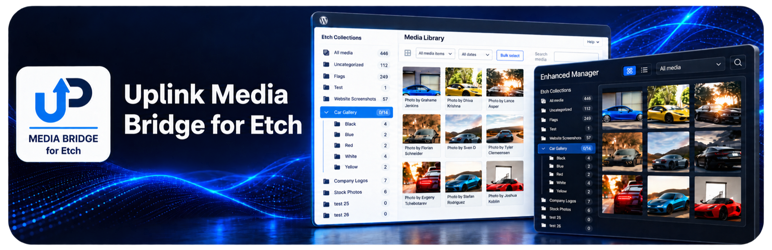

# Uplink Media Bridge for Etch
By [Stephen Walker](https://profiles.wordpress.org/stphnwlkr/)
[Download](https://downloads.wordpress.org/plugin/media-bridge-for-etch.2.2.5.zip)
* [Details](https://frp.wordpress.org/plugins/media-bridge-for-etch/#description)
* [Reviews](https://frp.wordpress.org/plugins/media-bridge-for-etch/#reviews)
* [Installation](https://frp.wordpress.org/plugins/media-bridge-for-etch/#installation)
* [Development](https://frp.wordpress.org/plugins/media-bridge-for-etch/#developers)
[Support](https://wordpress.org/support/plugin/media-bridge-for-etch/)
## Description
Uplink Media Bridge for Etch adds a native Media > Etch Collections workspace for
organizing the WordPress media library with Etch itself. Create and edit two-level
collections, upload or select media, assign items to multiple collections, drag
selected items into a collection, and use bulk assignment tools without installing
another folder plugin.
[Read the Uplink Media Bridge for Etch 2.0 overview](https://uplinkplugins.com/articles/uplink-media-bridge-for-etch-version-2/).
Wicked Folders and HappyFiles remain supported as optional bridge providers. Choose
one under Media > Uplink Media Bridge when you want bidirectional synchronization
instead of the native-only mode.
To update the plugin settings, open Media > Uplink Media Bridge in the WordPress
admin. The settings are located under the Media tab, not the Settings menu.
WordPress 7.0 and newer also exposes the manager and Media Bridge settings through
the Command Palette. The manager entry uses the administrator-defined label and
is available only in native Etch Collections mode; it is hidden from both the Media
menu and Command Palette while Wicked Folders or HappyFiles is selected. WordPress
capability checks determine which entries each user can see.
Administrators who choose the Enhanced Media Manager can change its label. The default
remains Etch Collections. The custom name is used in the Media menu, manager title,
information popup, WordPress media-selection tab, and Command Palette. Searching
the Command Palette for Etch continues to find the manager and Media Bridge settings,
even when the manager uses a custom name.
The Media Library experience setting offers two exclusive choices in Etch-only mode.
WordPress Media Library keeps the native screens and can add Etch Collection tools
to them. Enhanced Media Manager replaces the Media screen and WordPress media-selection
dialogs with the custom-labeled manager and its inserter.
Optional providers:
* Wicked Folders
* HappyFiles
Native features include collection creation, rename, movement and deletion; Etch
drag-and-drop collection ordering; media uploads and permanent deletion; a full-
screen attachment editor and compact icon toolbar; title, alt text, decorative state,
caption, and description editing; adjustable grid and masonry layouts plus a compact
list view; detailed filtering by media and MIME type, uploader, attachment status,
date, dimensions, file size, and missing alt text; Media Health scanning; optional
EXIF display; Auto, Light, and Dark appearance modes; search; automatic scroll loading;
optional numbered pagination; multi-collection assignments; Ctrl/Command-click and
Shift-click range selection; drag-and-drop assignment; and bulk add, remove, uncategorize,
or delete actions.
### Media Health and EXIF
The Health workspace scans attachments for broken or empty files, missing image
alt text, missing generated image sizes, oversized files, suspected duplicates,
and obsolete BMP or TIFF formats. It also provides dedicated Decorative and Healthy
views. Suspected duplicates have byte-for-byte matching file contents, but distinct
attachment records may be intentional. Rescan after changing files outside WordPress;
normal Media Bridge edits and attachment changes invalidate the cached scan automatically.
The display popover can reveal camera, lens, aperture, focal length, ISO, exposure,
capture date, credit, and copyright metadata in the attachment editor when WordPress
extracted those values from the file.
The Image metadata for Etch setting exposes normalized EXIF under each current Etch
image object. Use the active object prefix followed by fields such as `image.exif.
camera_model`, `image.exif.aperture_display`, `image.exif.focal_display`, `image.
exif.exposure_display`, or `image.exif.date_taken`. In a repeated item context,
for example, this can be `item.image.exif.camera_model`. When WordPress creates
a `-scaled` image without EXIF, the bridge reads metadata from WordPress’s retained
original image. The provider does not register the old `featured_image_exif` alias.
Embedded GPS coordinates are a separate setting and are disabled by default. When
enabled, latitude, longitude, and altitude appear in the attachment editor and are
available below `image.exif.gps`.
### Ops Center integration
Uplink Ops Center and other trusted server-side plugins can send commands through
the `uplink_mbe_execute_media_command` filter. Pass `null` as the first value and
a command array as the second value. The filter returns a result array or `WP_Error`.
Update attachment fields:
```
$result = apply_filters( 'uplink_mbe_execute_media_command', null, array( 'operation' => 'update', 'attachment_id' => 123, 'fields' => array( 'title' => 'Team photo', 'alt' => 'The support team outside the office', 'decorative' => false, 'caption' => '', 'description' => '' ) ) );
```
Add attachments to a collection:
```
$result = apply_filters( 'uplink_mbe_execute_media_command', null, array( 'operation' => 'add', 'attachment_ids' => array( 123, 124 ), 'collection_id' => 45 ) );
```
The `remove` operation uses the same IDs. The `clear` operation removes all Media
Bridge collection assignments and does not need `collection_id`. Commands honor
the current user’s WordPress media permissions. A trusted non-interactive integration
can opt in with `uplink_mbe_media_command_allowed`. Media Bridge fires `uplink_mbe_attachment_updated`
after metadata edits and `uplink_mbe_media_collections_changed` after assignment
changes.
Open the active media experience from an integration with `uplink_mbe_get_library_url()`.
Pass an attachment ID to open that attachment, or pass `upload` as the second argument
to open the active uploader:
```
$attachment_url = uplink_mbe_get_library_url( 123 );
$upload_url = uplink_mbe_get_library_url( 0, 'upload' );
```
The helper returns native WordPress URLs when WordPress Media Library is selected
and Enhanced Manager URLs when it is the default. The `uplink_mbe_media_library_url`
filter can change generated URLs. The Enhanced Manager dispatches `uplink-mbe:library-
ready` on `document` after the library and any requested interface action have initialized.
Navigation stays separate from the `uplink_mbe_execute_media_command` mutation filter.
Etch Collections loads additional media automatically as you scroll. Administrators
who prefer page controls can enable numbered pagination under Media > Media Bridge.
Bridge features include folder creation, rename and movement synchronization; attachment
assignment synchronization; provider-specific ordering; optional deletion synchronization;
fixed or most-recent conflict authority; reconciliation; and a 200-entry sync history.
Etch supports two folder levels. Deeper folders in the selected client-side provider
remain untouched. Media assigned below level two is represented in Etch by its nearest
supported ancestor.
### Migrating from Wicked Folders or HappyFiles
Media Bridge stores synchronized copies as Etch Collections. After those collections
and attachment assignments have been reconciled, they remain available in native
mode even if Wicked Folders or HappyFiles is deactivated or removed.
Before migrating, make a current site backup. Do not deactivate or remove the folder
plugin until the Etch copy has been verified.
Recommended migration procedure:
1. Keep Wicked Folders or HappyFiles active.
2. Open Media > Media Bridge and select the installed folder provider.
3. Disable Synchronize folder deletions during the migration unless copied deletions
are specifically required.
4. Save the settings, then run reconciliation.
5. Open Media > Etch Collections and verify the collection names, hierarchy, item
counts, and several individual media assignments.
6. Return to Media > Media Bridge, select Etch Collections — no third-party plugin,
and save.
7. Deactivate the folder plugin, then verify Media > Etch Collections again.
8. Remove the folder plugin only after verification is complete.
Switching to native mode stops the bridge hooks. It does not delete Etch Collections,
attachment assignments, or media files. The original provider data is separate and
may remain in the database after deactivation; uninstall behavior depends on that
provider.
Etch supports two collection levels. Top-level folders, second-level folders, and
their media assignments are preserved. For folders deeper than two levels, the deeper
provider folders remain untouched while the bridge is active, but Etch represents
their media using the nearest supported two-level ancestor. The exact third-level-
or-deeper hierarchy cannot be preserved in native Etch Collections.
For rollback, restore the site backup for a complete restoration of provider-specific
data. Alternatively, reinstall or reactivate the provider, select it under Media
> Media Bridge, and reconcile from Etch; this can rebuild the supported two-level
folder structure and assignments, but it cannot reconstruct provider-only deeper
hierarchy or settings that the provider removed during uninstall.
### Collection galleries
Collection Gallery is enabled by default. Administrators can turn it off under Media
> Media Bridge; doing so unregisters the block and shortcode and hides the gallery
generator and documentation.
The Collection Gallery block displays a live gallery fed by an Etch collection.
Adding or removing an image from the selected collection updates the rendered gallery
without editing the page. Block controls include standard grid, tiled mosaic, circular
grid, square tiles, and tiled columns; one to eight columns; image resolution; cropping
and aspect ratio; spacing; random order; child collections; and an image limit.
Image behavior can use the custom gallery lightbox, the native WordPress lightbox,
or no interaction. The custom lightbox includes optional titles and captions, a
horizontal or vertical thumbnail strip, separate lightbox image resolution, fullscreen
and zoom controls, customizable colors and font sizes, and information above or
below the image. It supports Escape, arrow, Home, End, Tab, Shift+Tab, plus/minus,
and zero keyboard controls, traps focus while open, announces slide changes, and
restores focus to the originating thumbnail when closed. Images are never linked
directly to a media file or attachment page.
#### Image optimizer compatibility
Media Bridge organizes standard WordPress attachments, so image optimizers that
create separate WebP or AVIF files do not interfere with collections or folder synchronization.
Front-end delivery needs more care when an optimizer wraps the same gallery image
through both `wp_get_attachment_image` and `wp_content_img_tag`, because that can
create nested `` elements.
Thumbnail titles and captions are separate options and are disabled by default.
When enabled, their colors, background color and opacity, font sizes, alignment,
and top, center, or bottom position are customizable.
The same gallery renderer is available through the `[etch_collection_gallery]` shortcode.
The `collection` value can be a collection ID or slug:
```
[etch_collection_gallery collection="airplanes" layout="tiled" columns="4" size="large" lightbox="custom" lightbox_thumbnails="true" lightbox_thumbnail_position="horizontal" limit="24"]
```
The `lightbox` value accepts `custom`, `native`, or `none`. Custom-lightbox options
include `lightbox_title`, `lightbox_caption`, `lightbox_thumbnails`, `lightbox_fullscreen`,`
lightbox_zoom`, `lightbox_size`, `lightbox_thumbnail_position`, `lightbox_info_position`,`
lightbox_background`, `lightbox_panel`, `lightbox_title_color`, `lightbox_caption_color`,`
lightbox_font`, `lightbox_title_size`, `lightbox_caption_size`, `lightbox_title_weight`,
and `lightbox_caption_weight`. Font values are `inherit`, `system`, `serif`, or `
mono`. Thumbnail text uses `show_title`, `captions`, `title_color`, `caption_color`,`
text_background`, `background_opacity`, `title_size`, `caption_size`, `text_align`,
and `text_position`.
Available shortcode attributes are `collection`, `include_children`, `layout`, `
columns`, `size`, `crop`, `aspect_ratio`, `random`, `show_title`, `captions`, `lightbox`,`
title_color`, `caption_color`, `title_size`, `caption_size`, `text_align`, `limit`,
and `gap`. Layout values are `grid`, `tiled`, `circles`, `square`, or `columns`.
Images can use the native WordPress lightbox or remain non-clickable; direct image
and attachment links are not supported.
### Access and permissions
Media Bridge uses WordPress capabilities rather than maintaining a separate role
system. Access to Media > Etch Collections and its media-selection tab requires
the upload_files capability. Creating, renaming, moving, or deleting collections
requires the Etch taxonomy’s manage_terms capability, while assigning media requires
its assign_terms capability. Editing attachment details requires edit access to
that attachment, and permanent deletion requires delete access to that attachment.
WordPress administrators and editors normally have all required capabilities; authors
retain the limits configured by WordPress and any role-management plugin.
The WordPress Command Palette follows the same rules. Users with upload_files can
open the manager command while native mode is active. Only users with manage_options
can see and open the Media Bridge settings command.
### Data retention and removal
Deactivating or deleting Media Bridge preserves its settings and bridge metadata
by default. Administrators can independently opt into cleanup on deactivation or
deletion under Media > Media Bridge. Cleanup removes Media Bridge settings, synchronization
history, legacy options, and bridge-specific mapping metadata. Etch Collections,
third-party folders, attachment assignments, media records, and files are always
preserved.
The deactivation option supports managed environments where plugins are removed
through a deployment workflow rather than the WordPress Plugins screen. The deployment
must run WordPress’s deactivation hook before removing the plugin files; once those
files are gone, Media Bridge cannot execute cleanup code.
On multisite, network administrators can configure off-by-default network-wide cleanup
overrides under Network Admin > Settings > Media Bridge. A network override can
clean Media Bridge-owned records across every site during network deactivation or
plugin deletion, regardless of individual site choices. Site-level deactivation
continues to follow that site’s local setting.
Deactivating or deleting Media Bridge stops Collection Gallery blocks, gallery shortcodes,
and their Etch builder passthrough from rendering. Saved block and shortcode content
remains in WordPress and renders again after the plugin is reactivated or reinstalled.
## Screenshots
[⌊Collection Gallery block displaying a three-column grid, with collection, layout,
image size, crop, and aspect-ratio controls in the block sidebar.⌉⌊Collection Gallery
block displaying a three-column grid, with collection, layout, image size, crop,
and aspect-ratio controls in the block sidebar.⌉[
Collection Gallery block displaying a three-column grid, with collection, layout,
image size, crop, and aspect-ratio controls in the block sidebar.
[⌊Collection Gallery block excluding child collections while displaying a cropped
three-column image grid.⌉⌊Collection Gallery block excluding child collections while
displaying a cropped three-column image grid.⌉[
Collection Gallery block excluding child collections while displaying a cropped
three-column image grid.
[⌊Gallery source controls for choosing an Etch collection, including child collections,
and setting the maximum image count.⌉⌊Gallery source controls for choosing an Etch
collection, including child collections, and setting the maximum image count.⌉[
Gallery source controls for choosing an Etch collection, including child collections,
and setting the maximum image count.
[⌊Collection Gallery block with grid layout controls and custom lightbox options
open in the block sidebar.⌉⌊Collection Gallery block with grid layout controls and
custom lightbox options open in the block sidebar.⌉[
Collection Gallery block with grid layout controls and custom lightbox options open
in the block sidebar.
[⌊Empty Collection Gallery block prompting the editor to choose an Etch collection.⌉⌊
Empty Collection Gallery block prompting the editor to choose an Etch collection
.⌉[
Empty Collection Gallery block prompting the editor to choose an Etch collection.
[⌊Gallery and shortcode documentation covering the block, shortcode attributes,
and custom lightbox options.⌉⌊Gallery and shortcode documentation covering the block,
shortcode attributes, and custom lightbox options.⌉[
Gallery and shortcode documentation covering the block, shortcode attributes, and
custom lightbox options.
[⌊Media Bridge settings with the Enhanced Manager selected as the default media
workflow.⌉⌊Media Bridge settings with the Enhanced Manager selected as the default
media workflow.⌉[
Media Bridge settings with the Enhanced Manager selected as the default media workflow.
[⌊Etch EXIF settings and documentation with dynamic-data examples, available fields,
and GPS privacy guidance.⌉⌊Etch EXIF settings and documentation with dynamic-data
examples, available fields, and GPS privacy guidance.⌉[
Etch EXIF settings and documentation with dynamic-data examples, available fields,
and GPS privacy guidance.
[⌊Media Bridge settings with the WordPress Media Library and native Etch Collection
tools selected.⌉⌊Media Bridge settings with the WordPress Media Library and native
Etch Collection tools selected.⌉[
Media Bridge settings with the WordPress Media Library and native Etch Collection
tools selected.
[⌊Media upload screen with collection assignment, drag-and-drop area, Cimo optimization
bypass, and new-collection access.⌉⌊Media upload screen with collection assignment,
drag-and-drop area, Cimo optimization bypass, and new-collection access.⌉[
Media upload screen with collection assignment, drag-and-drop area, Cimo optimization
bypass, and new-collection access.
[⌊Instant Images tab in the featured-image selector with Unsplash and other image
providers.⌉⌊Instant Images tab in the featured-image selector with Unsplash and
other image providers.⌉[
Instant Images tab in the featured-image selector with Unsplash and other image
providers.
[⌊Etch Collections featured-image selector with collection navigation, search, filters,
layout controls, and a selected image.⌉⌊Etch Collections featured-image selector
with collection navigation, search, filters, layout controls, and a selected image
.⌉[
Etch Collections featured-image selector with collection navigation, search, filters,
layout controls, and a selected image.
[⌊Collection gallery shortcode generator with a live preview and controls for layout,
thumbnails, child collections, and image order.⌉⌊Collection gallery shortcode generator
with a live preview and controls for layout, thumbnails, child collections, and
image order.⌉[
Collection gallery shortcode generator with a live preview and controls for layout,
thumbnails, child collections, and image order.
[⌊New collection dialog with collection name and parent collection fields.⌉⌊New
collection dialog with collection name and parent collection fields.⌉[
New collection dialog with collection name and parent collection fields.
[⌊Collection management dialog for adding multiple collections or deleting selected
collection assignments without deleting media.⌉⌊Collection management dialog for
adding multiple collections or deleting selected collection assignments without
deleting media.⌉[
Collection management dialog for adding multiple collections or deleting selected
collection assignments without deleting media.
[⌊Full-screen attachment editor showing Cimo compression results in the Optimization
tab.⌉⌊Full-screen attachment editor showing Cimo compression results in the Optimization
tab.⌉[
Full-screen attachment editor showing Cimo compression results in the Optimization
tab.
[⌊Full-screen attachment editor showing camera settings and location metadata in
the EXIF tab.⌉⌊Full-screen attachment editor showing camera settings and location
metadata in the EXIF tab.⌉[
Full-screen attachment editor showing camera settings and location metadata in the
EXIF tab.
[⌊Full-screen attachment editor with title, alt text, caption, description, and
hierarchical collection assignment controls.⌉⌊Full-screen attachment editor with
title, alt text, caption, description, and hierarchical collection assignment controls
.⌉[
Full-screen attachment editor with title, alt text, caption, description, and hierarchical
collection assignment controls.
[⌊Media Health navigation showing issue counts for missing alt text, missing image
sizes, oversized files, and other checks.⌉⌊Media Health navigation showing issue
counts for missing alt text, missing image sizes, oversized files, and other checks
.⌉[
Media Health navigation showing issue counts for missing alt text, missing image
sizes, oversized files, and other checks.
[⌊Media Health workspace with scan progress, issue categories, search, filters,
layout controls, and affected media cards.⌉⌊Media Health workspace with scan progress,
issue categories, search, filters, layout controls, and affected media cards.⌉[
Media Health workspace with scan progress, issue categories, search, filters, layout
controls, and affected media cards.
[⌊Appearance editor with separate dark-palette controls and contrast ratios for
interface text, surfaces, badges, and controls.⌉⌊Appearance editor with separate
dark-palette controls and contrast ratios for interface text, surfaces, badges,
and controls.⌉[
Appearance editor with separate dark-palette controls and contrast ratios for interface
text, surfaces, badges, and controls.
[⌊Display panel for thumbnail size and optional card details including filename,
author, date, MIME type, file size, dimensions, and EXIF status.⌉⌊Display panel
for thumbnail size and optional card details including filename, author, date, MIME
type, file size, dimensions, and EXIF status.⌉[
Display panel for thumbnail size and optional card details including filename, author,
date, MIME type, file size, dimensions, and EXIF status.
[⌊Etch Collections media manager in masonry view with nested collections, search,
filters, media details, status icons, and selection controls.⌉⌊Etch Collections
media manager in masonry view with nested collections, search, filters, media details,
status icons, and selection controls.⌉[
Etch Collections media manager in masonry view with nested collections, search,
filters, media details, status icons, and selection controls.
[⌊Etch Collections media manager in grid view with nested collections, search, filters,
collection badges, and selection controls.⌉⌊Etch Collections media manager in grid
view with nested collections, search, filters, collection badges, and selection
controls.⌉[
Etch Collections media manager in grid view with nested collections, search, filters,
collection badges, and selection controls.
[⌊Etch Collections media manager in list view with thumbnails, file details, collection
badges, status icons, and selection controls.⌉⌊Etch Collections media manager in
list view with thumbnails, file details, collection badges, status icons, and selection
controls.⌉[
Etch Collections media manager in list view with thumbnails, file details, collection
badges, status icons, and selection controls.
## Blocks
This plugin provides 1 block.
* Collection Gallery Display a live gallery of images from an Etch collection.
## Installation
1. Install and activate Etch.
2. Install and activate Uplink Media Bridge for Etch.
3. Open Media > Etch Collections to organize media without another folder plugin.
4. Optional: install Wicked Folders or HappyFiles, then select it under Media > Media
Bridge.
5. If using a bridge provider, run reconciliation once before relying on automatic
synchronization.
## Reviews

### [Amazing plugin, surprised it’s not paywalled](https://wordpress.org/support/topic/amazing-plugin-surprised-its-not-paywalled/)
[sabeehhassan14](https://profiles.wordpress.org/sabeehhassan14/) September 14,
2026 1 reply
Steve walker is a gem in the Etch space. This is a plugin (one of many from him)
that I now install on any EtchWP site I work with. Positively suprised that someone
put out this brilliant work for free.
[ Read all 1 review ](https://wordpress.org/support/plugin/media-bridge-for-etch/reviews/)
## Contributors & Developers
“Uplink Media Bridge for Etch” is open source software. The following people have
contributed to this plugin.
Contributors
* [ Stephen Walker ](https://profiles.wordpress.org/stphnwlkr/)
[Translate “Uplink Media Bridge for Etch” into your language.](https://translate.wordpress.org/projects/wp-plugins/media-bridge-for-etch)
### Interested in development?
[Browse the code](https://plugins.trac.wordpress.org/browser/media-bridge-for-etch/),
check out the [SVN repository](https://plugins.svn.wordpress.org/media-bridge-for-etch/),
or subscribe to the [development log](https://plugins.trac.wordpress.org/log/media-bridge-for-etch/)
by [RSS](https://plugins.trac.wordpress.org/log/media-bridge-for-etch/?limit=100&mode=stop_on_copy&format=rss).
## Changelog
#### 2.2.5
* Adds a Suspected duplicates view to Media Health for byte-identical attachments,
with filenames shown directly on health cards and available in full on hover.
* Expands media search to match WordPress attachment fields and filenames, including
filename wildcard searches such as `*-1.png`.
* Reports failed uploads in the Enhanced Manager and lets the remaining upload
queue continue instead of leaving the media dialog stalled.
#### 2.2.4
* Keeps uploads in the Enhanced Manager instead of briefly switching to the native
WordPress media grid, with matching upload progress feedback.
#### 2.2.3
* Fixes ACF and Meta Box taxonomy image selection and replacement while preserving
each media workflow’s expected controls.
#### 2.2.2
* Limits direct EXIF reads to supported JPEG and TIFF source files, preventing
warnings for PNG, WebP, and AVIF images.
#### 2.2.1
* Uses raw attachment titles and decoded fallback filenames in the Enhanced Manager,
Etch dynamic data, and collection galleries.
#### 2.2.0
* Adds Etch Collections to the native WordPress media library and media selector,
including filtering, upload destinations, collection management, assignment controls,
and drag-and-drop organization.
* Adds a clear choice between the familiar WordPress Media Library and the complete
Enhanced Manager workflow.
* Extends native attachment editing with Etch Collection assignments, registered
custom fields, direct image editing, and a return path to the originating media
screen.
* Reorganizes settings around collection source and media workflow, with persistent
save controls, unsaved-change warnings, and reset-to-default support.
#### 2.1.2
* Adds list, grid, and masonry controls to the media inserter and shares the saved
view with the manager.
* Matches the inserter search and toolbar layout to the manager, including live
search and responsive wrapping.
* Keeps the Images filter active for featured-image fields and sorts MIME types
alphabetically by subtype.
* Moves the selection control into the card footer and aligns it with the media
status icons.
* Clears stale featured-image selections after the current image is removed.
#### 2.1.1
* Shows the currently assigned featured image as selected and visible without opening
the Details panel.
* Removes the first-click delay when selecting media from a large library.
* Keeps parent disclosure controls aligned with top-level folder icons in the manager
and inserter.
* Removes an unrelated legacy optimizer note from the plugin description.
#### 2.1
* Detects and reports optimization metadata recorded by Cimo without depending
on Cimo’s internal PHP classes.
* Records successful Etch attachment replacements so later optimization details
can be displayed.
* Distinguishes the optimized full-size image from aggregate storage across generated
WordPress image sizes.
* Preserves earlier Cimo or Etch results as clearly labeled optimization history
when another optimizer subsequently replaces the attachment.
* Moves optimization history into a contextual inspector tab and identifies WordPress-
generated image sizes processed by Cimo.
* Visually separates the current file from earlier optimization stages in both
attachment inspectors.
* Improves attachment inspector sizing on smaller screens and corrects its semantic
heading order.
* Adds matching optimization indicators and filters to the manager and media inserter.
* Uses a standardized gauge icon for optimized media throughout both interfaces.
* Adds an Optimization documentation tab with guidance for Cimo, Etch, and Cimo’s
documented AVIF support.
* Ignores stale Cimo statistics after Etch or another tool replaces the attachment,
while allowing a later Cimo run to become current again.
* Reworks the Upload screen with collection destination selection, drag-and-drop
staging, file validation, remove and clear controls, and an explicit batch upload
action.
* Adds an optional Keep originals switch for Cimo uploads so original embedded
metadata can reach WordPress unchanged.
* Adds inline collection creation and an accessible explanation popover to the
Upload screen.
* Moves collection management controls beside the collection tree and adds collection
assignment to the Main tab of the attachment editor.
* Adds delayed live search to the media inserter so search behavior matches the
manager.
* Opens the Media Bridge uploader from WordPress’s Add Media File menu when Media
Bridge is the default Media screen.
* Preserves WordPress’s canonical Media menu identifiers so menu-management plugins
can continue to recognize and organize the Media item and its submenus.
* Adds a settings button to the manager header so administrators retain direct
access when Media Bridge replaces the default Media screen.
* Keeps attachment text areas at a usable multi-line height on tablets and adds
a clearer branch treatment for nested collection assignments.
#### 2.0.7
* Renames Muted text to Secondary text throughout the appearance editor.
* Adds independent foreground controls for badges and non-image previews.
* Groups backgrounds beside their associated text and icon colors in the appearance
editor.
* Separates media card backgrounds from panel backgrounds in both the manager and
inserter.
* Clarifies the foreground controls used on accent, soft-accent, and destructive
backgrounds.
* Shows a live pass/fail dot and contrast ratio beside every configurable text
or icon foreground.
* Keeps older appearance exports compatible by filling newly introduced colors
from accessible defaults.
#### 2.0.6
* Adds a context-aware attachment-details action for selecting, inserting, setting,
or replacing an image based on **user feedback**.
* Makes the full media card open attachment details while keeping its checkbox
dedicated to selection.
* Organizes attachment inspectors into Main, Metadata, and contextual EXIF tabs,
with editable descriptive fields grouped under Main.
* Uses the manager’s full-screen two-pane attachment editor in the media inserter,
replacing Delete with the current Insert, Set featured image, or Replace featured
image action.
* Standardizes manager and inserter metadata as matching label-and-value rows and
removes the incomplete Usage indicator.
* Unifies filter badges, active-filter counting, Clear all behavior, and attachment
tabs between the manager and inserter; search remains independent from filters.
* Returns manager uploads and Instant Images imports to the newly created attachment
instead of leaving the user in a selection screen.
* Keeps inspector tabs and action buttons fixed while the active tab content scrolls.
* Keeps the themed media-selector footer visible while hiding only its unavailable
action button.
#### 2.0.5
* Keeps the WordPress upload, Etch Collections, and Instant Images tabs within
one stable media-selector frame.
* Adds separate Accent text colors for selected-state labels in light and dark
palettes.
* Uses Primary text consistently for media titles, including hover and keyboard-
focus states.
* Includes Accent text in live appearance previews, WCAG 2.2 AA validation, reset,
import, and export.
#### 2.0.4
* Moves appearance controls beside Manage Collections in the native manager.
* Adds live light- and dark-palette previews with WCAG 2.2 AA foreground validation.
* Exposes the complete semantic color palette used by the manager and media selector.
* Preserves the selected notification text color and adjusts its background only
when needed for WCAG 2.2 AA contrast.
* Adds versioned JSON export and preview-before-save import for appearance settings.
* Replaces oversized generic MIME icons with compact video, audio, document, and
file placeholders when no poster image is available.
#### 2.0.3
* Package the Media Bridge settings icon with the plugin and load it from the runtime
assets directory.
#### 2.0.2
* Fix a fatal error when WordPress deletes attachment metadata during plugin updates
and other attachment cleanup operations.
#### 2.0.1
* Adds permission-checked attachment deep links with `uplink_mbe_attachment`.
* Adds upload-flow deep links with `uplink_mbe_action=upload`.
* Adds `uplink_mbe_get_library_url()` and the `uplink_mbe_media_library_url` filter
for integrations.
* Dispatches `uplink-mbe:library-ready` after the native library and requested
interface action initialize.
* Keeps search independent from the filter count and Clear All action.
* Reloads the library when a browser-native search clear control empties the search
field.
* Includes attachment filenames in native library search results.
* Improves search-clear visibility, joins the search field to its button, and applies
configured icon contrast colors to accent-backed controls.
* Adds debounced live search with busy-state semantics and polite result-count
announcements for assistive technology.
#### 2.0.0
* Reworks attachment previews and editing as one full-screen Media Bridge modal.
* Adds title, alt text, decorative state, caption, description, file details, collection
membership, and optional EXIF to the editor and media-selection modal.
* Organizes attachment metadata into accessible File Info and EXIF tabs, with File
Info selected by default.
* Adds detailed filters to both media views and labels the author filter “Uploaded
by.”
* Moves Clear All into the filter header, removes unnecessary desktop overflow,
and improves control spacing.
* Themes the complete WordPress media frame in Auto, Light, and Dark modes, retains
Instant Images as a peer tab when active, stabilizes provider switching, and
makes its monochrome Unsplash mark theme-aware.
* Strengthens contrast, focus visibility, and target sizing for WCAG 2.2 AA.
* Adds independently validated light- and dark-mode icon colors for controls shown
on accent backgrounds.
* Replaces the accordion drawer with compact filter and display popovers.
* Adds Media Health scanning and issue-specific library views.
* Adds definitions below the Health filters, including type-specific file-size
limits for Oversized media.
* Exposes EXIF on current Etch image objects as `*.image.exif.*`, with GPS as a
separate opt-in and no legacy featured-image alias.
* Adds a context-free Etch lookup at `options.upm.img[ID].exif.*` and an Etch EXIF
documentation tab.
* Reads EXIF and GPS from WordPress’s retained original image when the generated`-
scaled` derivative has stripped metadata.
* Replaces the large manager actions with compact icon controls.
* Adds a persistent masonry view alongside grid and list layouts.
* Adds `uplink_mbe_execute_media_command` for trusted Ops Center edits and collection
assignments.
* Adds post-operation hooks for attachment edits and collection assignment changes.
#### 1.5.3
* Adds off-by-default Network Admin cleanup overrides for network deactivation
and plugin deletion.
* Keeps site-level deactivation governed by each site’s local setting unless a
network-wide action invokes an enabled override.
* Adds icon-free, Etch-style drag-and-drop collection reordering in the native
media workspace.
* Adds an accessible Alt+Up/Down keyboard alternative for reordering sibling collections.
* Keeps keyboard focus on a selected collection after its media reloads so Option/
Alt+Arrow movement remains available.
* Preserves Etch’s drag-and-drop collection sequence in the native media workspace
and gallery collection selectors.
* Keeps collection groups alphabetical by default while preserving custom sequences
during native create, rename, move, and delete actions.
#### 1.5.2
* Adds an off-by-default setting to remove Media Bridge settings, logs, legacy
options, and mapping metadata during uninstall.
* Adds a separate off-by-default cleanup setting for managed environments that
deactivate plugins before removing their files through deployment.
* Preserves Etch Collections, third-party folders, attachment assignments, media
records, and files during cleanup.
* Adds a prominent warning that gallery blocks, shortcodes, and the Etch passthrough
require Media Bridge to remain active.
* Adds direct, cumulative, and direct/total parent collection count display options.
* Adds a broadly supported 10-pixel drawer radius with progressive squircle enhancement.
#### 1.5.1
* Moves main-library search, filters, thumbnail sizing, and collection assignment
actions into a docked top drawer that pushes the media view, while keeping list/
grid controls always visible.
* Adds a persistent pin control that keeps the main-library drawer open between
visits and closes it when unpinned.
* Fixes collection assignment controls so they wrap cleanly on tablet and mobile
screens.
* Uses closed and open folder icons for leaf collections while leaving parent collection
groups unadorned.
* Includes child collections when a parent collection is selected.
* Adds a paperclip indicator to cards for media attached to content.
* Adds the upload date to the attachment details modal.
* Refines media status icon sizing and the accessible drawer presentation.
#### 1.5.0
* Adds a server-rendered Collection Gallery preview for Etch passthrough blocks.
* Adds focused collection, layout, image, caption, and lightbox controls inside
the Etch builder.
* Saves Etch-side gallery changes back to the original Gutenberg block representation.
* Keeps the Etch Collection Gallery passthrough wrapper in normal document flow
so parent containers grow to the gallery’s rendered height.
* Improves Etch gallery settings contrast, focus visibility, control boundaries,
and touch target sizing.
* Traps keyboard focus inside the settings dialog, makes the builder background
inert, and restores focus when the dialog closes.
* Exposes the dialog description and saving state to assistive technology.
#### 1.4.1
* Makes the gallery block and shortcode an option (on by default).
* Fixed overlap issues in the filter bar on smaller screens.
* Matches the Media Collections modal sidebar spacing and controls to the main
media manager.
* Applies the configured appearance colors consistently inside the Media Collections
modal.
* Refreshes the modal collection view as soon as an upload completes.
* Adds modal uploads to the collection that was selected when the upload began.
#### 1.4.0
* Adds a file-extension filter populated from extensions present in the media library.
* Expands Clear filters to reset media type, file extension, upload date, and search.
* Adds the main media filters and Clear filters to the Media Collections tab in
the Add Image modal.
* Adds a dynamic Collection Gallery block and matching shortcode fed automatically
by a collection.
* Adds an enabled-by-default setting that can unregister and hide all Collection
Gallery functionality.
* Adds aligned collection counts, collapsible parents, and parent chevrons to the
collection tree.
* Adds a visual shortcode generator with a live gallery preview in the media manager.
* Adds grid, columns, circles, square, and true masonry mosaic gallery layouts
with optional aspect-ratio cropping.
* Adds thumbnail title and caption controls, including position, typography, color,
and background styling.
* Adds a professional custom lightbox with full-image containment, keyboard navigation,
zoom, fullscreen mode, styled title and caption content, and horizontal or vertical
thumbnail strips.
* Preserves custom block CSS classes and responsive lazy loading in gallery output.
* Keeps child collections directly beneath their parent in gallery collection selectors.
* Prevents the hidden native Media Library view from appearing when the collection
manager is the default Media screen.
* Makes the gallery generator refresh its selected collection regardless of how
it was opened.
* Opens the gallery generator with the collection currently selected in the Media
Manager.
#### 1.3.0
* Adds an explicit second confirmation before deleting media detected in site content.
* Prompts administrators to delete child collections or promote them when deleting
a parent collection.
* Fixes collection renaming so updated names are saved and synchronized.
* Adds grid and list views plus media type and date filters.
* Adds a one-click control for clearing active media type and date filters.
* Makes the collections tab the default media-selector view and hides its legacy
Media Library tab when the optional default Media screen setting is enabled.
* Adds bulk collection creation from comma-delimited or line-delimited names and
bulk taxonomy-only deletion.
* Adds accessible light- and dark-mode color customization.
* Displays the plugin version in settings and the media-manager information popover.
* Adds a first-phase used/not-found status to attachment details.
#### 1.2.0
* Added an administrator-defined white-label name for the native media manager
while retaining Etch Collections as the default.
* Applied the custom manager name consistently to the Media menu, page title, media-
selection tab, information popup, settings guidance, pagination control, and
manager callout.
* Added capability-aware WordPress Command Palette entries for the manager and
Media Bridge settings, with both discoverable by searching for Etch.
* Hid the native manager menu and media-selection tab while Wicked Folders or HappyFiles
is the active organization mode.
* Added an off-by-default option to make the custom manager the primary Media destination
and hide the legacy Library submenu link without disabling WordPress’s native
media library.
#### 1.1.1
* Improved bulk selection with reliable Shift-click checkbox ranges, clearer collection
guidance, collection-aware actions, and a dedicated Clear selection action.
#### 1.1
* Enforced the Etch dependency with activation and runtime checks, preventing the
bridge from starting unless Etch is installed and active.
* Added a native Media > Etch Collections workspace that does not require a third-
party folder plugin.
* Added two-level collection management, media uploads, search, drag-and-drop assignment,
multi-selection, and bulk actions.
* Added an in-place attachment details modal with file metadata, editable alt text,
dimensions, and collection membership so viewing media does not lose the current
collection context.
* Kept attachment-specific confirmations and errors inside the attachment modal
instead of displaying them in the main library window.
* Added previous and next attachment navigation with keyboard controls, position
tracking, automatic page-boundary loading, and alt-text saving before navigation.
* Made numbered media-library pagination optional and disabled it by default, using
automatic scroll loading instead.
* Added permanent media deletion from library cards, bulk selection tools, and
the attachment modal.
* Added Ctrl/Command-click toggling and Shift-click range selection for bulk category
actions.
* Refined the media cards with uniform edge-to-edge thumbnails, compact selection
and deletion footers, alt-text status indicators, and accessible usage guidance.
* Added a persistent 180–400 pixel thumbnail-size control, centered in the library
header and defaulting to 240 pixels.
* Consolidated library instructions and the alt-text indicator explanation into
an accessible information popup beside the Etch Collections title.
* Kept thumbnail placement centered and consistent across the library and WordPress
media dialogs.
* Matched Etch Collections cards inside WordPress media-selection dialogs, including
filenames, collection badges, and alt-text status.
* Replaced the media-dialog Load more button with automatic scroll loading and
tightened the collection sidebar.
* Expanded the native library to the available admin width and increased its minimum
card width to 240 pixels.
* Kept the WordPress admin chrome fixed while giving the image results and an overflowing
collection tree independent scroll areas.
* Restored the image library’s viewport-bound scroll area and lets WordPress admin
submenus escape the independently scrolling navigation while open.
* Prevented unusually long WordPress admin menus from increasing the Etch Collections
page height by containing the menu in an independent desktop scroll area.
* Added thin, theme-aware scrollbars throughout the native library and media-selection
interface.
* Contained long collection lists within the 240-pixel media-dialog sidebar so
they no longer enlarge WordPress’s outer modal.
* Added Auto, Light, and Dark appearance modes for the Etch Collections library
and its WordPress media-selection tab.
* Audited light and dark interface colors for WCAG AA text contrast, visible focus,
selection, status, and destructive-action states.
* Removed image-layout indicators from cards to keep the selection footer unambiguous.
* Documented the WordPress capability checks used for media, collection, assignment,
editing, and deletion access.
* Replaced the redundant upload-or-select workflow with a focused uploader that
opens directly to file upload while preserving automatic assignment to the active
collection.
* Added an Etch Collections tab to WordPress media-selection dialogs with collection
filtering, search, automatic scroll loading, and native single or multiple attachment
selection.
* Hid synchronization history in Etch-only mode, where no external folder bridge
is active.
* Added automatic alphabetical position normalization for collections created or
edited in the native workspace.
* Kept Wicked Folders and HappyFiles available as optional synchronization modes.
* Documented the complete migration and rollback procedure for removing an external
folder provider safely.
#### 1.0.2
* Fixed Clear History immediately restoring entries from the legacy log option.
* Fixed new folder synchronization when a fixed conflict authority is selected,
while continuing to enforce that authority for mapped folders.
* Preserved alphabetical placement for new folders that have no explicit source
order, while continuing to synchronize custom ordering when available.
#### 1.0.1
* Fixed synchronized folder deletions by preserving mapped counterpart details
until WordPress confirms the source folder was deleted.
* Fixed stale counterpart mappings when a folder is deleted while deletion synchronization
is disabled.
* Clarified that plugin settings are managed under Media > Media Bridge, not the
WordPress Settings menu.
#### 1.0.0
* First stable release.
#### 0.1.1
* Hardened provider input validation and mapped-term verification.
* Replaced the reconciliation tax query with taxonomy-native object lookups.
* Improved admin table semantics, status announcements and translated notices.
* Added missing translator context.
#### 0.1.0
* Initial development release.
* Added Etch, Wicked Folders and HappyFiles providers.
* Added bidirectional folders and attachment assignments.
* Added reconciliation, conflict policy, deletion safety and sync history.
## Meta
* Version **2.2.5**
* Last updated **13 hours ago**
* Active installations **100+**
* WordPress version ** 7.0 or higher **
* Tested up to **7.1.2**
* PHP version ** 8.3 or higher **
* Language
* [English (US)](https://wordpress.org/plugins/media-bridge-for-etch/)
* Tags
* [etch](https://frp.wordpress.org/plugins/tags/etch/)[folders](https://frp.wordpress.org/plugins/tags/folders/)
[happyfiles](https://frp.wordpress.org/plugins/tags/happyfiles/)[media](https://frp.wordpress.org/plugins/tags/media/)
* [Advanced View](https://frp.wordpress.org/plugins/media-bridge-for-etch/advanced/)
## Ratings
5 out of 5 stars.
* [ 1 5-star review ](https://wordpress.org/support/plugin/media-bridge-for-etch/reviews/?filter=5)
* [ 0 4-star reviews ](https://wordpress.org/support/plugin/media-bridge-for-etch/reviews/?filter=4)
* [ 0 3-star reviews ](https://wordpress.org/support/plugin/media-bridge-for-etch/reviews/?filter=3)
* [ 0 2-star reviews ](https://wordpress.org/support/plugin/media-bridge-for-etch/reviews/?filter=2)
* [ 0 1-star reviews ](https://wordpress.org/support/plugin/media-bridge-for-etch/reviews/?filter=1)
[Your review](https://wordpress.org/support/plugin/media-bridge-for-etch/reviews/#new-post)
[See all reviews](https://wordpress.org/support/plugin/media-bridge-for-etch/reviews/)
## Contributors
* [ Stephen Walker ](https://profiles.wordpress.org/stphnwlkr/)
## Support
Got something to say? Need help?
[View support forum](https://wordpress.org/support/plugin/media-bridge-for-etch/)